

So today, one of my former peers posed an interesting question to me:
Suppose I have customer that a bunch of service accounts that have on-premises mailboxes and need the object to show up in the cloud GAL, but the security organization maintains that those accounts must not be allowed to log into Azure AD.
Buddy, I have just the thing. Sort of.
Background
Many (if not most) organizations have applications that require some sort of a service account. This service account is generally restricted in terms of what devices it can log into, what rights it has on a system, and so forth. Service accounts may resemble user accounts in a number of other ways, too–such as having mailboxes and group memberships to allow them to fully participate in the infrastructure operations. However, when transitioning to Azure AD, a lot of those concepts don’t necessarily exist because the use case for Azure AD can be so dramatically different.
In this scenario, the simplest thing to do is to create an Azure AD Connect rule that disables the cloud account. Since the account is synchronized, disabling the account in cloud manually will mean that its state gets reverted upon the next sync.
Preparation
In preparing for this type of scenario, it’s important to identify a mechanism by which you’ll choose which objects to act upon. You’ll need to choose something that you can use to limit the scope to only the objects that will be disabled, whether that’s a particular attribute value or an organizational unit.
Once you’ve identified that, you can proceed with creating a rule.
In this case, I want to use both an attribute value AND an organizational unit (belt and suspenders, folks).
I’ve chosen:
- Description attribute contains a value of
DISABLESVC - The object will live in
OU=Service Accounts,OU=Test Accounts,DC=m365demolabs,DC=com
With that, it’s time to configure!
Create a synchronization rule
Using our business requirements of the description and OU, let’s start creating a rule.
- On the AAD Connect server, launch the Synchronization Rules Editor.
- In the Direction drop-down, select Inbound.
- Select Add new rule.
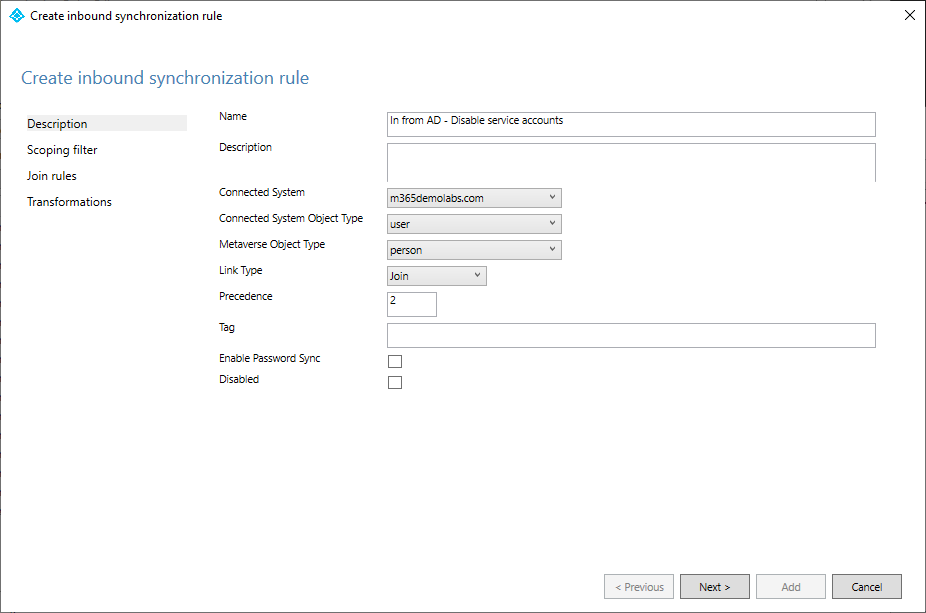
- On the Description tab, enter the details for the new rule. The important pieces:
Connected System:<your on-premises Active Directory source>
Connected System Object Type:user
Metaverse Object Type:person
Link Type:Join
Precedence:<any value with a number lower than an existing rule>
- Click Next.
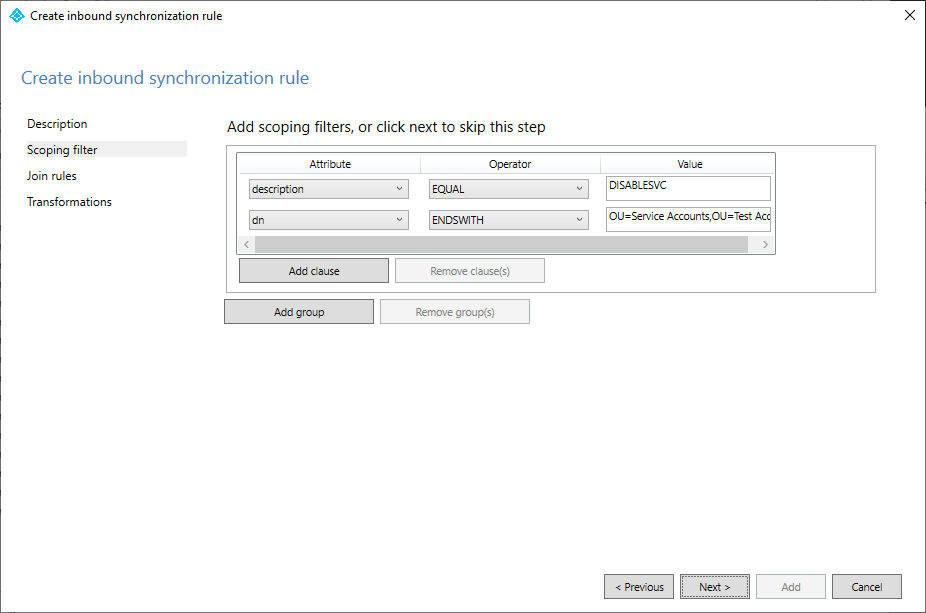
- On the Scoping filter page, click Add group.
- On the Scoping filter page, click Add clause.
- In the Attribute drop-down, select description (or your specific attribute).
- In the Operator drop-down, select EQUAL.
- In the Value text area, enter the text you’ll use to identify objects in scope. In this example, we’re using
DISABLESVC. AAD Connect is case-sensitive, so you must type it exactly the way you’ll be using it when modifying objects. - Click Add clause.
- In the Attribute drop-down, select dn. Organizational unit isn’t an available option for configuring a filter, so we’ll have to parse the necessary value out of the object’s distinguishedName.
- In the Operator drop-down, select ENDSWITH.
- In the Value text area, enter the container where the objects to be selected exist. In this case, the objects are located in
OU=Service Accounts,OU=Test Accounts,DC=m365demolabs,DC=com. Again, AAD Connect is case sensitive, so enter everything as it’s displayed in the DN attribute of the object.
- Click Next.
- On the Join rules page, click Next without configuring any rules.
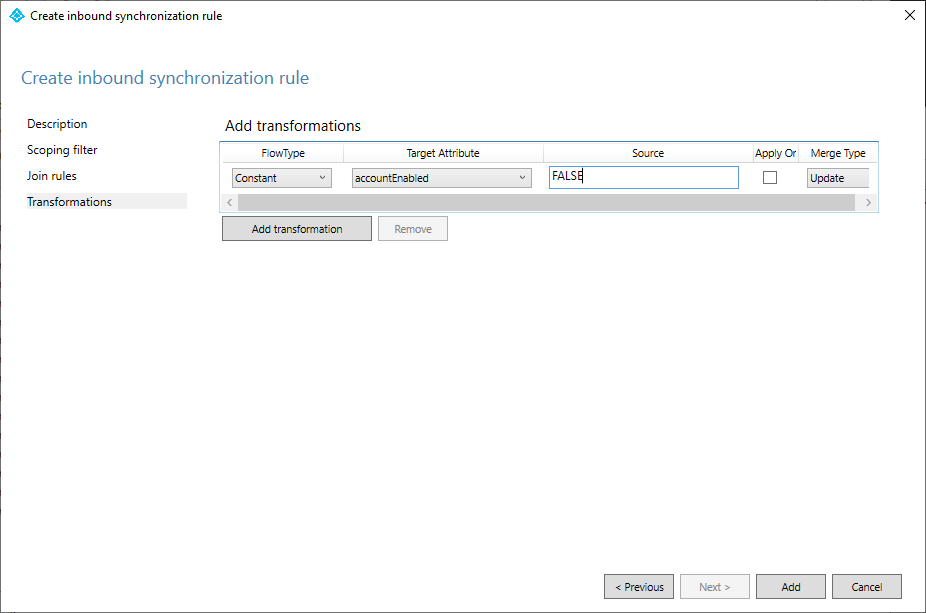
- On the Transformations page, click Add transformation.
- In the FlowType drop-down, select Constant.
- In the Target Attribute drop-down, select accountEnabled.
- In the Source text area, enter the value
FALSE. Again, AAD Connect is case sensitive, so be sure to enter the value as all capital letters and with no trailing spaces or punctuation. - Leave the Apply Once checkbox clear.
- In the Merge Type drop-down, ensure Update is selected.
- Click Add.
AAD Connect will inform you that a full synchronization is required.
Test
Testing is important, especially when modifying accounts. You can test be looking at an object that you expect to be in-scope in the Synchronization Service Manager.
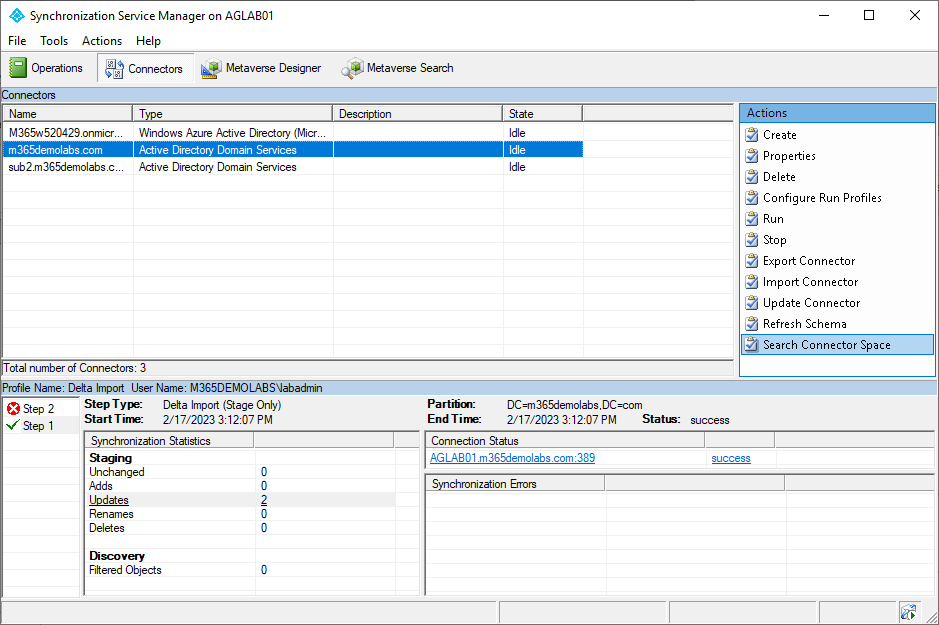
- Launch the AAD Connect Synchronization Service Manager.
- On the Connectors tab, select the on-premises Active Directory connector. Right-click and select Search Connector Space or choose Search Connector Space from the Actions pane.
- Under the Scope drop-down, select RDN.
- In the text box, type
CN=and then the first few letters of the display name of an object in-scope and click Search.
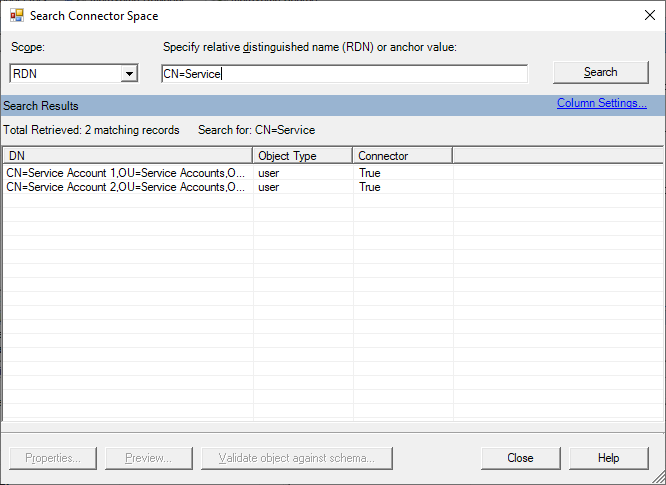
- Select an object and click Preview.
- Click the Full Synchronization radio button and then select Generate Preview.
- Expand Connector Updates and then expand the node that includes a GUID value, such as
CN={78394b...}. - Select Export Attribute Flow and look under the Data Source Attribute column for accountEnabled. Review the Initial Value (since this is value being imported from the metaverse).
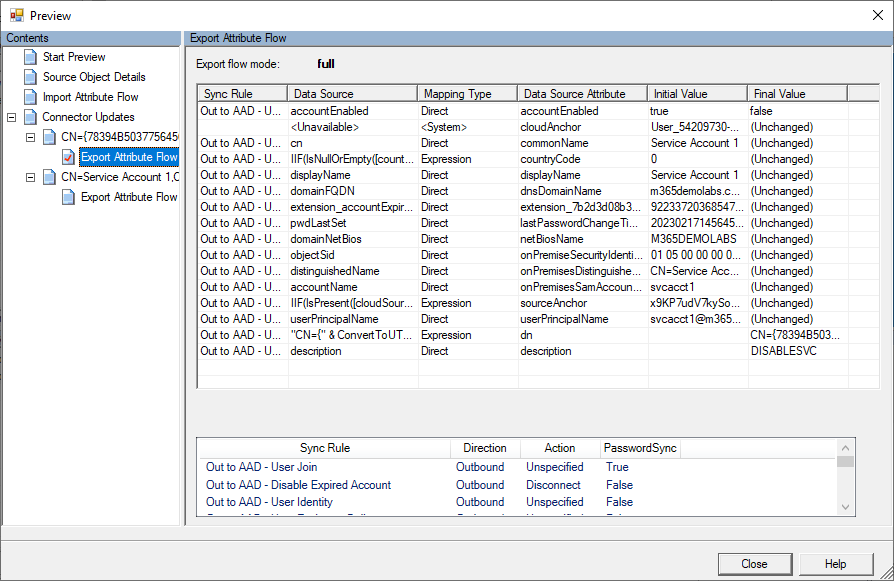
- Click Close.
You may want to repeat the procedure with accounts that you know are outside of the rule’s selection scope to ensure that you’re not going to have any unexpected results.
After you’ve confirmed this, you can either wait for a synchronization cycle to kick off or run a sync yourself. AAD Connect is aware of what connectors need full synchronizations run against them, so you just need to trigger a delta:
Start-AdSyncSyncCycle -PolicyType Delta
After the cycle has completed, you can review the object in Azure to ensure that it has been disabled:

And BAM! Robert is your father’s brother.
Addendum
At the risk of sounding redundant, it’s important to note that disabling a cloud account in this manner disables the ability for that account to log on and perform other functions. For example, if this scenario involved a service account with a cloud-based mailbox, the service account would no longer be able to log on and access its own service (think of a shared mailbox that has a disabled account which needs to be accessed from another enabled account).
If possible, I’d recommend securing via conditional access or possibly certificate-based authentication (CBA).