

Recently, I was working with someone who related an interesting requirement: for a certain group of users, add their managers to the Bcc field.
Here’s how you can do it:
- Depending on your Azure AD directory is populated, ensure that the users have a manager configured (either by editing the Manager field in your local Active Directory or by editing it in the Microsoft 365 admin center).
- Navigate to the Exchange Online admin center (https://admin.exchange.microsoft.com).
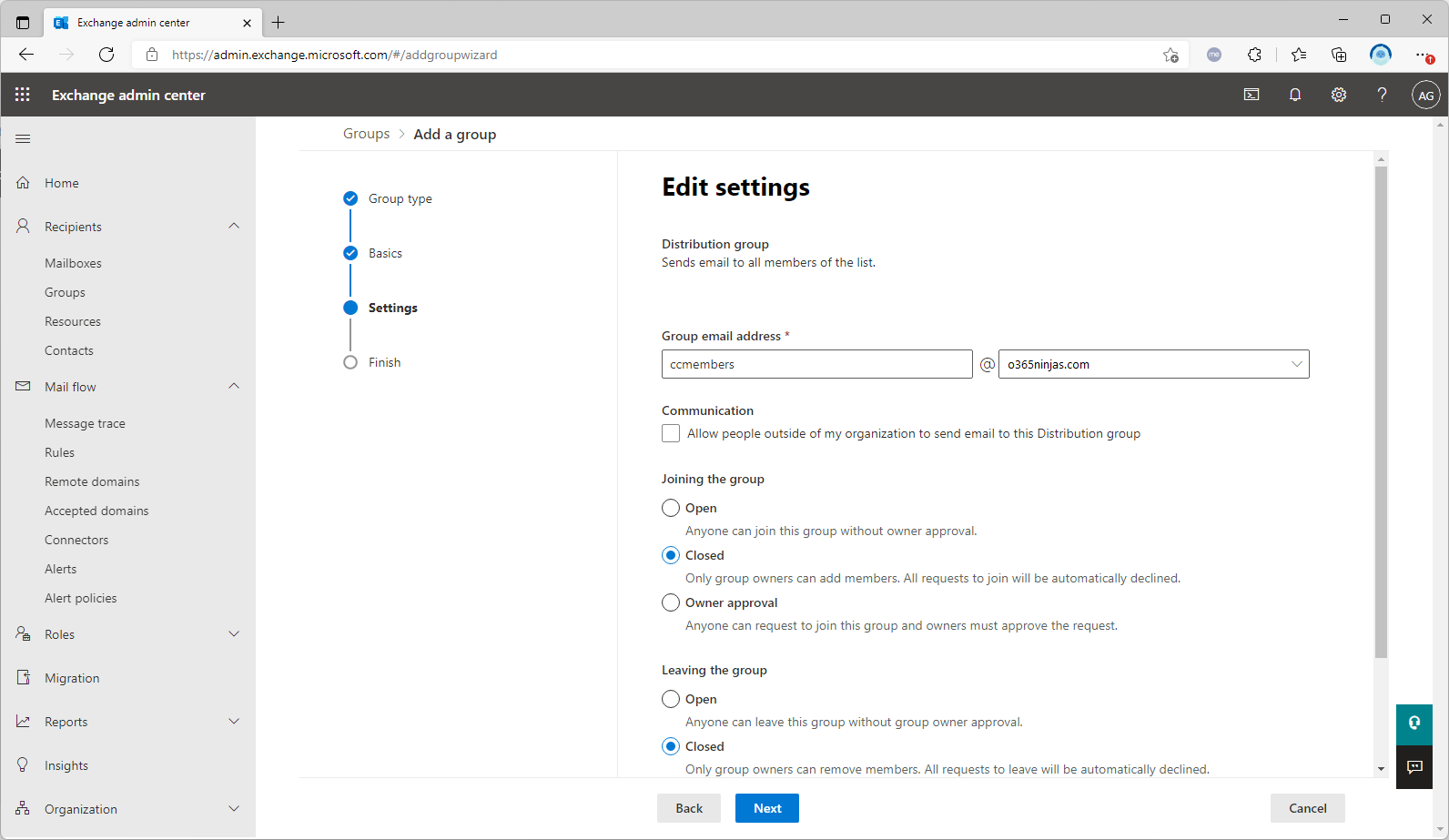
- Create a distribution group and add the members whose messages need to be be Cc’d into it.
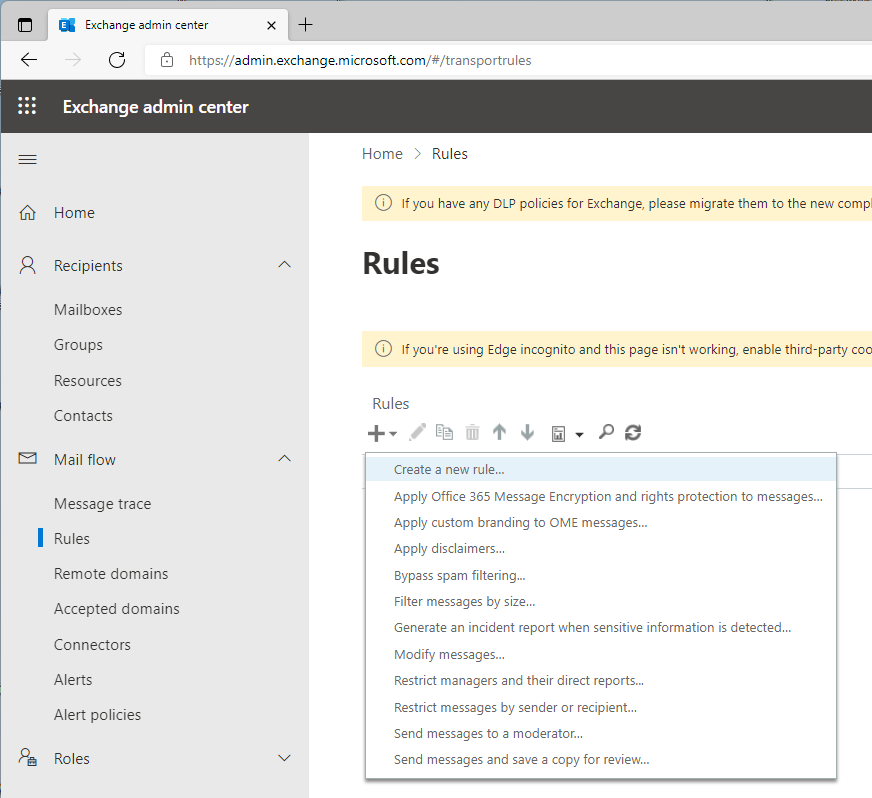
- Expand Mail flow and select Rules.
- Click + and then select Create a new rule.
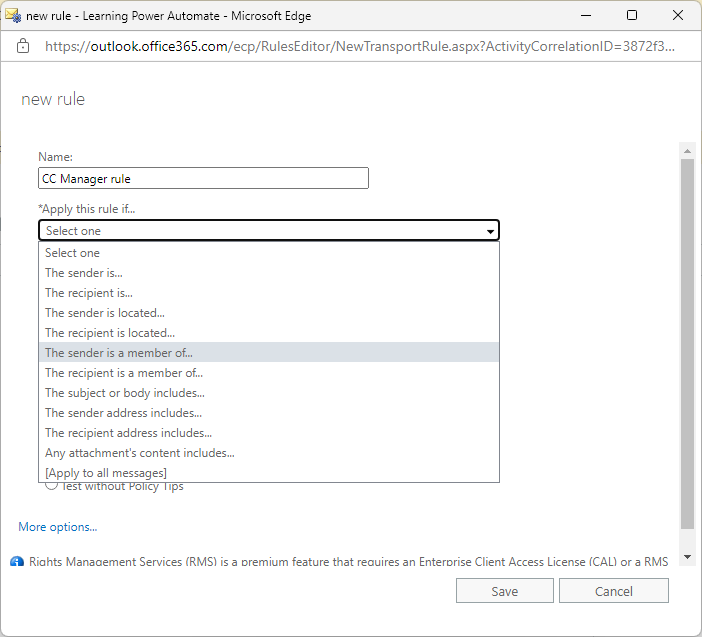
- Enter a Name for the rule.
- In the Apply this rule if… drop-down, select The sender is a member of.
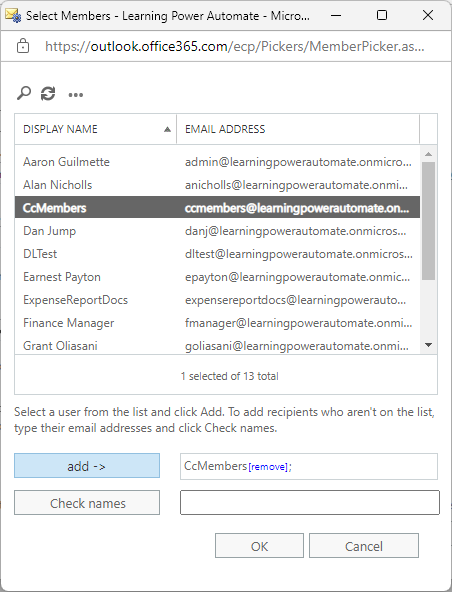
- Select the group containing the members whose messages will be copied to their managers and then click Add to add it to the recipients list. Click OK when all of the DLs have been added.
- Click More options… at the bottom of the window to enable additional actions.
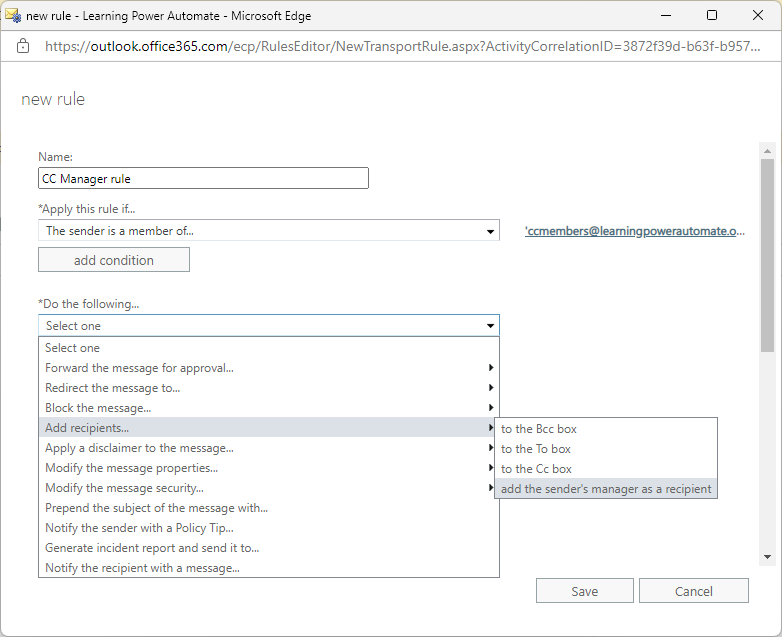
- Under Do the following, select Add recipients > add the sender’s manager as a recipient.
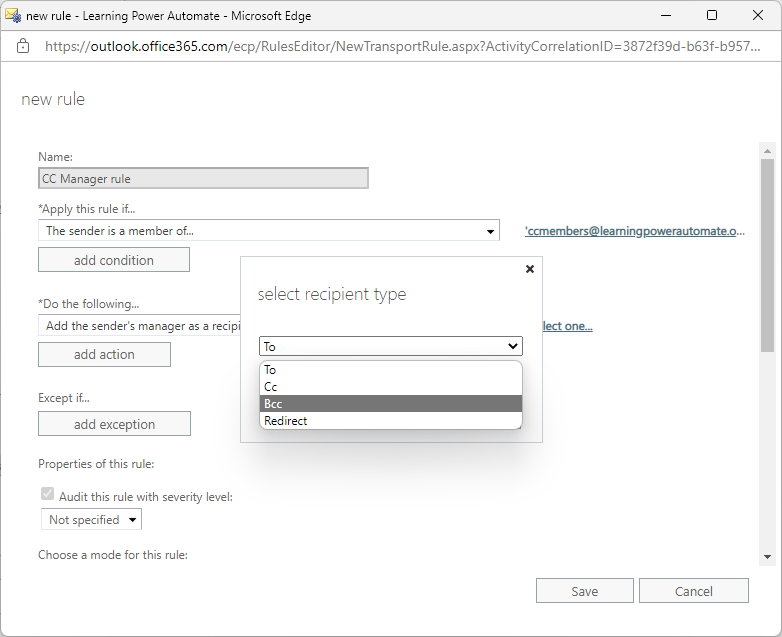
- In the Select recipient type box, select either To, Cc, Bcc, or Redirect. Click OK.
- Click Save to configure the rule.
All done–from this point, every message one of those distribution group members sends will be copied to their corresponding manager.
We also have a feature called Supervision that is designed for regulatory compliance needs, allowing you to also take a sample of supervised user’s messages.