

Earlier today, a customer asked me how to block screen capture on Windows 10/11 devices. Turns out, there are a few things we can do in the box.
Here we go!
Disclaimer: This post discusses modifying the Windows Registry. Please make a backup before changing any settings.
Preventing the screen snipping application
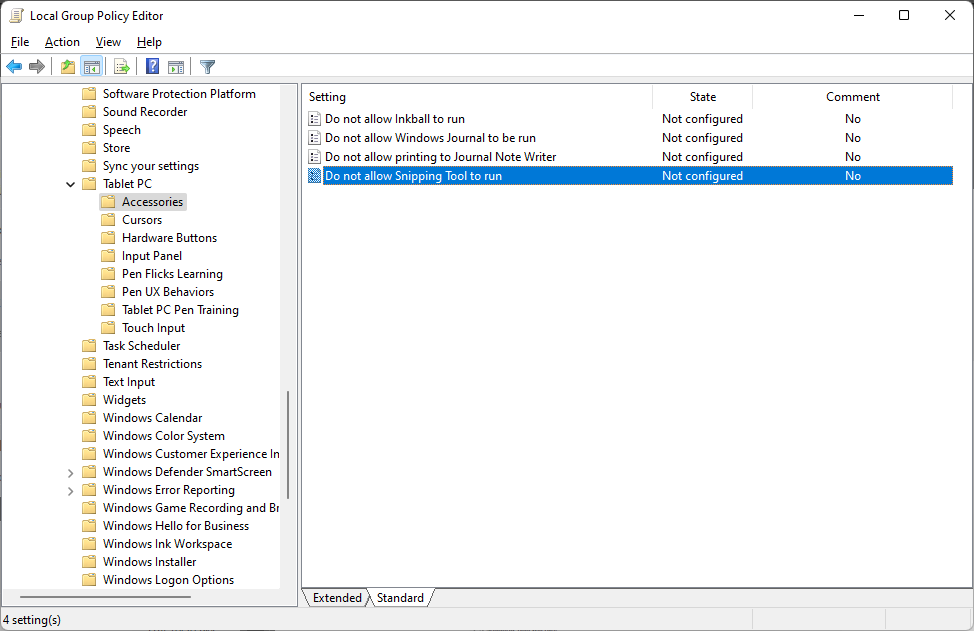
This is probably the easiest to do, as there’s actually a Group Policy Object that covers this. The Snipping tool is included with Windows 10/11 and is typically activated using the shortcut key Windows+Shift+S.
The GPO in question is located under Computer and User Configuration at Administrative Templates | Windows Components | Tablet PC | Accessories | Do not allow Snipping Tool to run. Set the value to Enabled to block the Snipping Tool from being able to be executed.
Preventing Microsoft Edge Web Capture
The Chromium-based Microsoft Edge also offers its own screen capture capabilities. End users can initiate Web Capture in the browser using the hotkey Ctrl+Shift+S:
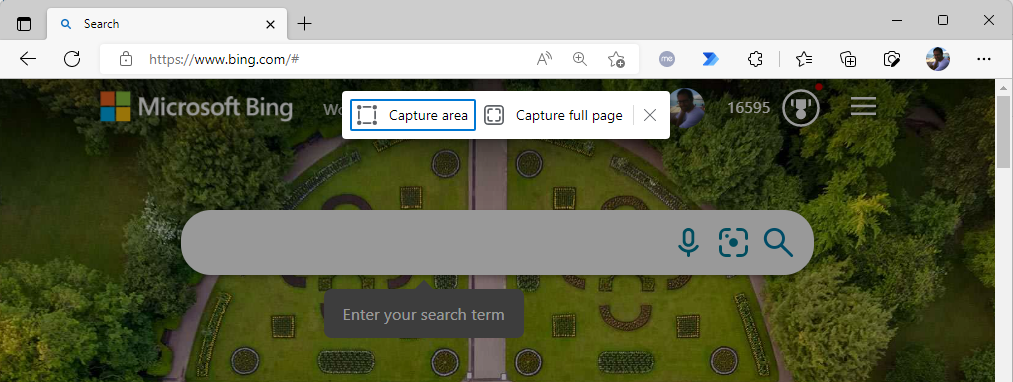
Similar to the Snipping tool, it allows you to capture part of the browser window area.
You can disable Microsoft Edge Web Capture on the target PC by deploying a Group Policy Preference:
Action: UpdateHive:
HKEY_LOCAL_MACHINE
Key Path: SOFTWARE\Policies\Microsoft\Edge
Type: REG_DWORD
Name: WebCaptureEnabled
Data: 0or 1
The value doesn’t exist by default. You can set it to 0 to disable web capture. Configuring the value as 1 or deleting it altogether enables web capture. You can do it without rebooting, but it does require all browser Edge browser windows to be closed before the policy setting will take effect.
Preventing desktop apps from capturing screenshots
New to Windows 10/11 are privacy settings that allow apps to interact with the window manager environment to capture screenshots on the user’s behalf.
In the UI, the options are located under Settings | Privacy & security | Screenshots and apps:
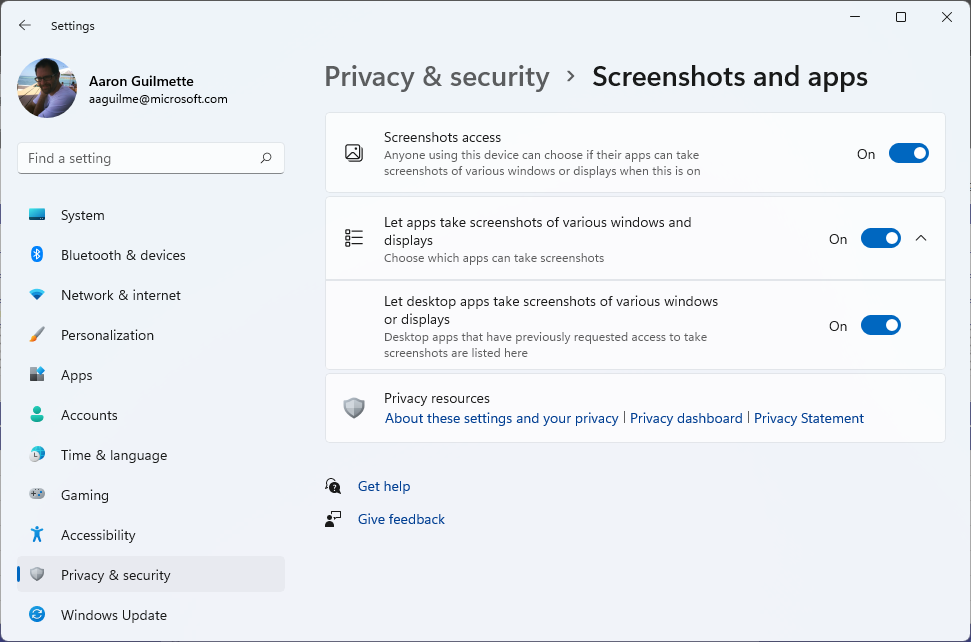
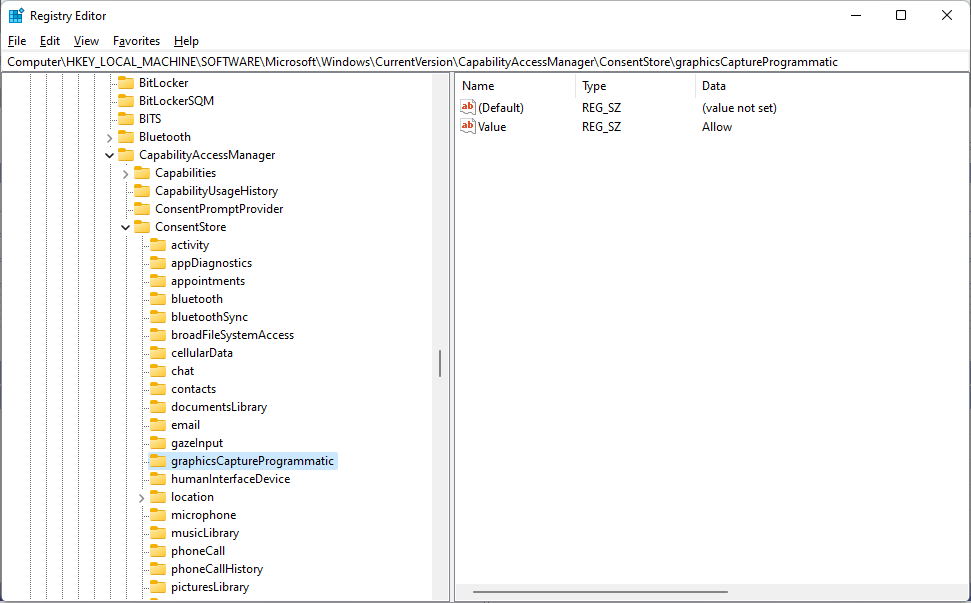
To manage these settings organization-wide, you’ll need to create a Group Policy Preference. The defaults are shown above. As an end user, once you toggle these settings to off, two new registry keys are created:
HKCU\Software\Microsoft\Windows\CurrentVersion\CapbilityAccessManager\ConsentStore\graphicsCaptureProgrammatic
HKLM\Software\Microsoft\Windows\CurrentVersion\CapbilityAccessManager\ConsentStore\graphicsCaptureProgrammatic
Under each of these keys, a new value is created:
Value Name: ValueValue Type:
REG_SZ(String)
Denyor Allow
Yes, the name of the value is value. To disable programmatic access, set the value to Deny for both of those values. To re-enable programmatic access, set the value to Allow or delete the value altogether.
Disabling the Print Screen / PrtScrn key
To this point, we’ve disabled the screen snipping tool and prevented applications from making screen captures, but there’s still good-ol’ PrtScrn and Alt+PrtScrn to contend with.
In this step, you’ll be remapping the PrtScrn key and Alt+PrtScrn key combination to null, effectively disabling the key. To do this, you need the keyboard scan code for PrtScrn (e037) and for Alt+PrtScrn (0054). I derived the required scan codes from this handy doc.
Copy this and paste it into an elevated PowerShell session to configure on a local computer.
$Scancode = [byte[]] (
0x00, 0x00, 0x00, 0x00, # Padding
0x00, 0x00, 0x00, 0x00, # Padding
0x03, 0x00, 0x00, 0x00, # signaling data for 2 mappings byte sets + 1 termination bytes set will follow
0x00, 0x00, 0x37, 0xe0, # map PrtScrn to NULL
0x00, 0x00, 0x54, 0x00, # map Alt+PrtScrn to NULL
0x00, 0x00, 0x00, 0x00  # Termination bytes
)

New-ItemProperty -path "HKLM:\SYSTEM\CurrentControlSet\Control\Keyboard Layout" -name "Scancode Map" -value $Scancode -Force
After you update the registry, you’ll need to reboot the computer, as the keyboard driver only reads this value on start-up.
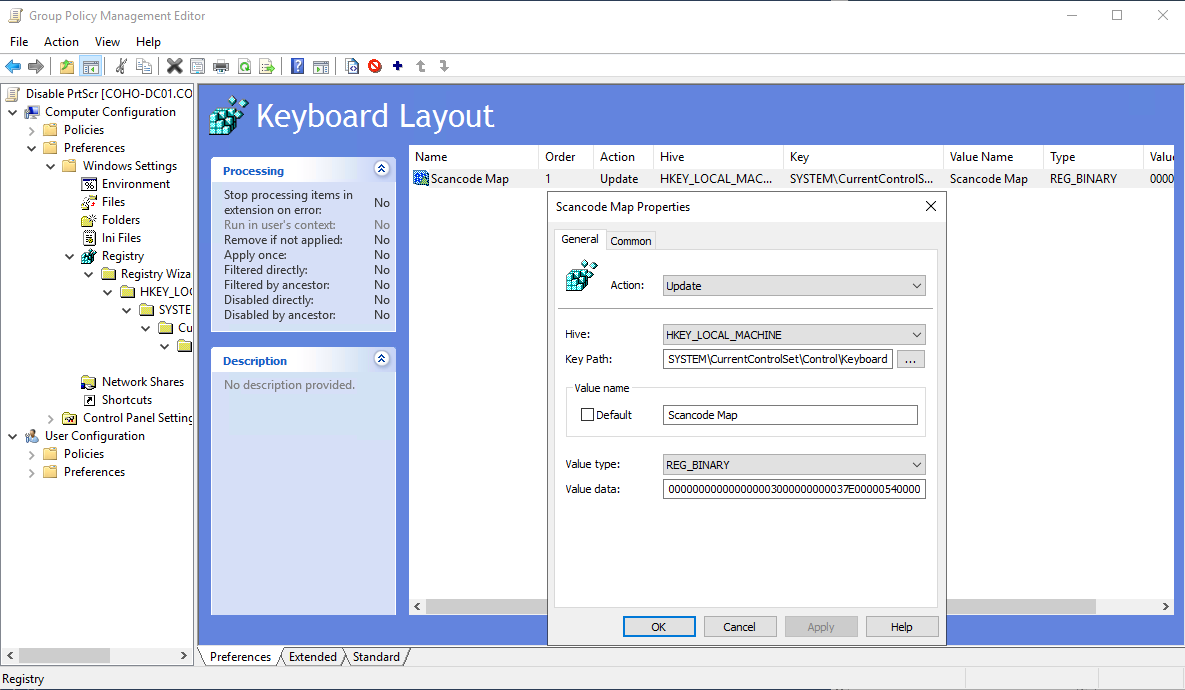
You can also deploy this via a Group Policy Preference.
When creating the preference, configure it with the following parameters:
Action: Update
Hive: HKEY_LOCAL_MACHINE
Key Path: SYSTEM\CurrentControlSet\Control\Keyboard Layout
Value name: Scancode Map
Value type: REG_BINARY
Value data: 000000000000000003000000000037E00000540000000000
To disable the mapping, simply delete the Scancode registry value and restart the machine.
If you’ve got any other great ways to limit screen captures, let me know in the comments!