
As we’re updating the Office 365 Administration Inside Out book (now called Microsoft 365 Administration Inside Out), I came across this chapter I wrote on OneDrive for Business Known Folder Move (KFM). This is the legacy method that won’t work for new deployments, but wanted it documented for posterity so that we could reference it for folks that inherited deployments using it so they know what to roll back.
We don’t recommend this method going forward, as it may break new deployments if implemented this way.
If you are looking to implement KFM with the modern OneDrive sync client, please see our current documentation: https://docs.microsoft.com/en-us/onedrive/use-group-policy#silently-move-windows-known-folders-to-onedrive
- Log on to a workstation or server with the OneDrive client installed and configure it using the default settings.
- Click Start, type %userprofile%, and press Enter to open the current user’s profile path. Copy the name of the OneDrive for Business folder (it should be OneDrive – <Company Name>).
- Launch the Group Policy Management console (gpmc.msc).
- Navigate to the Group Policy Objects node and create a new policy to configure the Documents folder redirection (or use the existing policy).
- In the Group Policy Management Editor, navigate to User Configuration | Preferences | Windows Settings. Right-click Environment, select New, and select Environment Variable. See Figure 1-1.
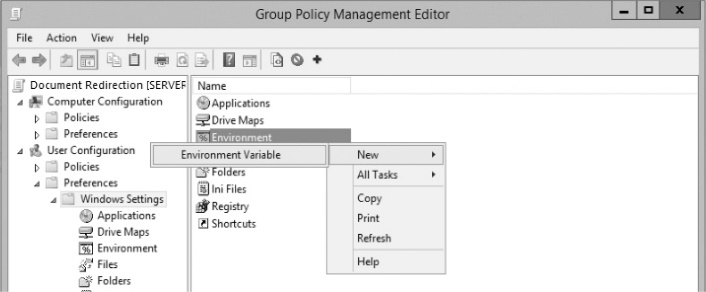
Figure 1-1 Creating a new environment variable in Group Policy Management Editor
- Ensure that the User Variable button is selected.
- In the Name box, type OneDriveSync.
- In the Value box, type %userprofile%\OneDrive – <Company Name>. Use the value you copied earlier, as shown in Figure 1-2.
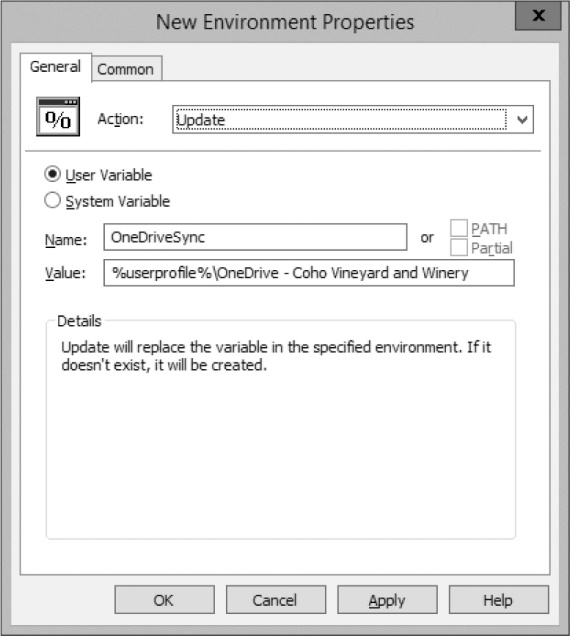
Figure 1-2 New Environment Properties dialog box
- On the Common tab, select the Item-Level Targeting check box and then click Targeting.
- In the Targeting Editor, click New Item, click File Match, type %userprofile%\OneDrive – <Company Name> in the Path box, and then update the Match Type to Folder Exists, as shown in Figure 1-3.
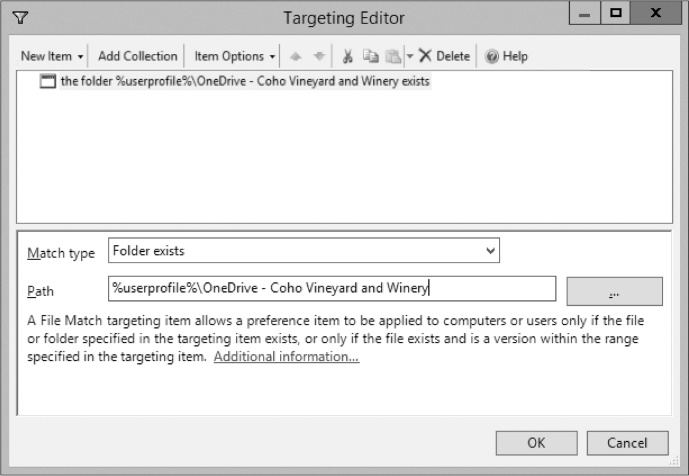
Figure 1-3 Configuring item-level targeting for the environment variable
- Click OK twice.
- Navigate to User Configuration | Policies | Windows Settings | Folder Redirection.
- Right-click Documents and click Properties. See Figure 1-4.
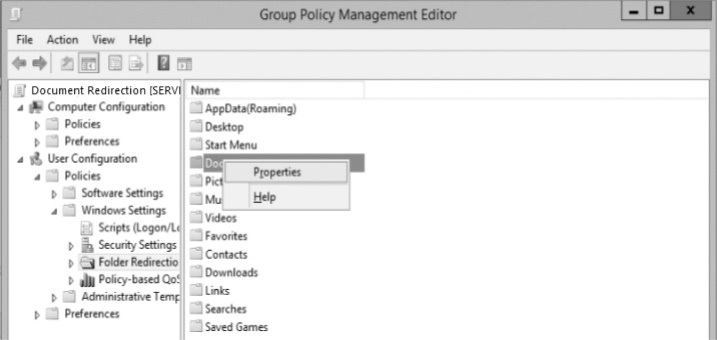
Figure 1-4 Configuring properties for Folder Redirection for Documents
- On the Target tab, select Basic – Redirect Everyone’s Folder To The Same Location.
- Under Target Folder Location, select Redirect To The Following Location.
- In the Root Path box, type %OneDriveSync%\Documents.
- Confirm that the settings reflect what is shown in Figure 1-5.
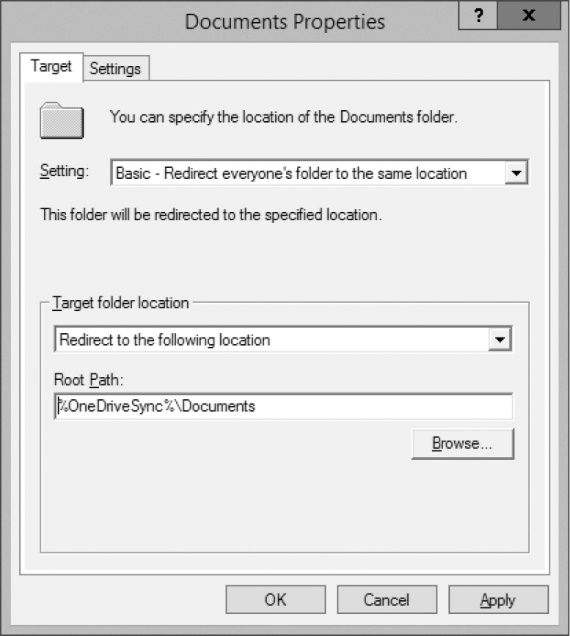
Figure 1-5 Documents folder target properties
- Select the Settings tab.
- Clear the Move The Contents Of Documents To The New Location check box (Figure 1-6) and click OK.
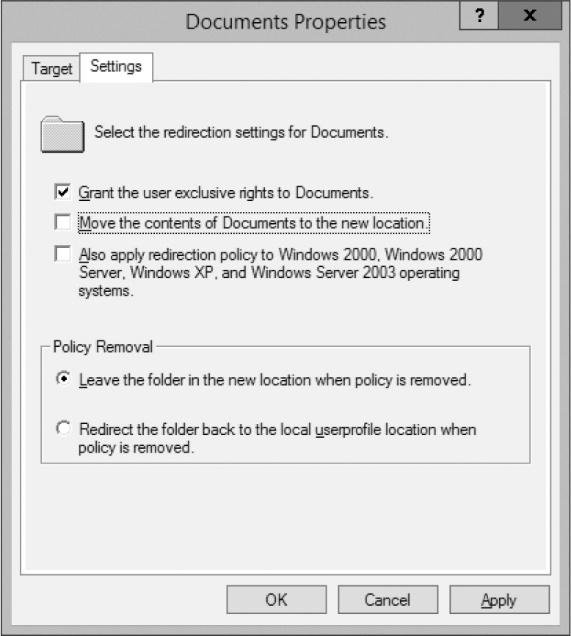
Figure 1-6 Documents folder redirection Settings tab
Note
What if you have already deployed OneDrive?
If your organization is new to OneDrive, you might want to select this check box to simplify your deployment. However, if you have had an inconsistent deployment or have some people using it already, it is recommended that you clear the check box to prevent items from Documents from overwriting existing files in their OneDrive folder. Most organizations will want to clear the check box for Move The Contents Of Documents To The New Location and plan to move document data manually.
- Click to acknowledge the warning displayed in Figure 1-7.
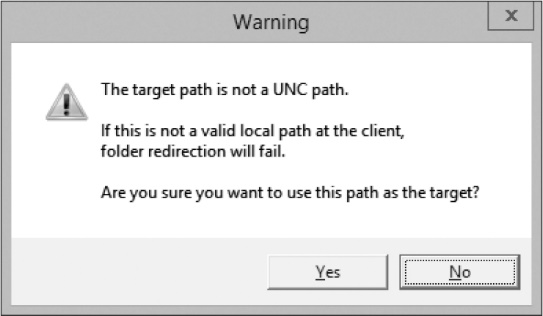
Figure 1-7 Warning dialog box because the target path is using an environment variable instead of a UNC path
- Optional: Configure other well-known folders to follow the Documents folder redirection.
- Navigate to User Configuration | Policies | Windows Settings | Folder Redirection.
- Right-click Pictures, Music, or Video and select Properties.
- In the Setting drop-down list, choose Follow The Documents Folder and click OK. See Figure 1-8.
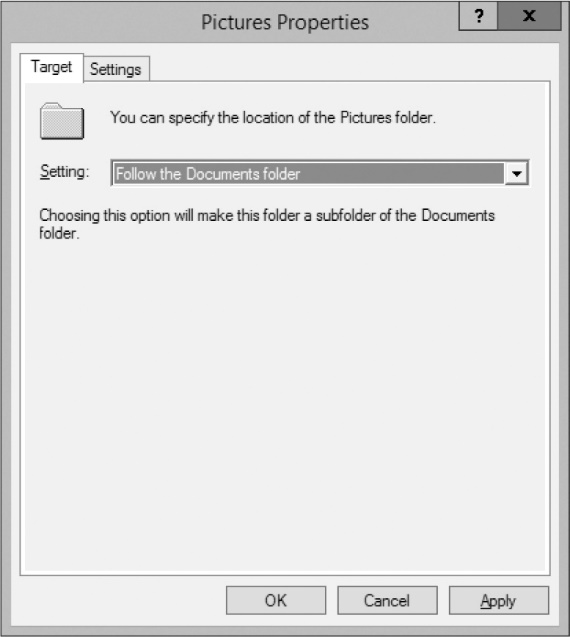
Figure 1-8 Configuring additional folders for redirection
- Close the Group Policy Management Editor.
- Link both policies to an organizational unit and test.