

This week, I found myself unable to log into an Azure-hosted VM due to a new managed firewall rule. The new rule was put in at priority 0 and it specifically blocks inbound 3389.
Now, with it blocked, I’m unable to log into the server to update it. This is quite a chicken-and-egg situation.
Oops.
Fortunately, there’s a workaround. You can update the RDP port on your servers to a non-standard port through the portal itself.
Here we go!
- Log into the Azure portal (https://portal.azure.com).
- Navigate to your virtual machine.
- Under Operations, select Run command.
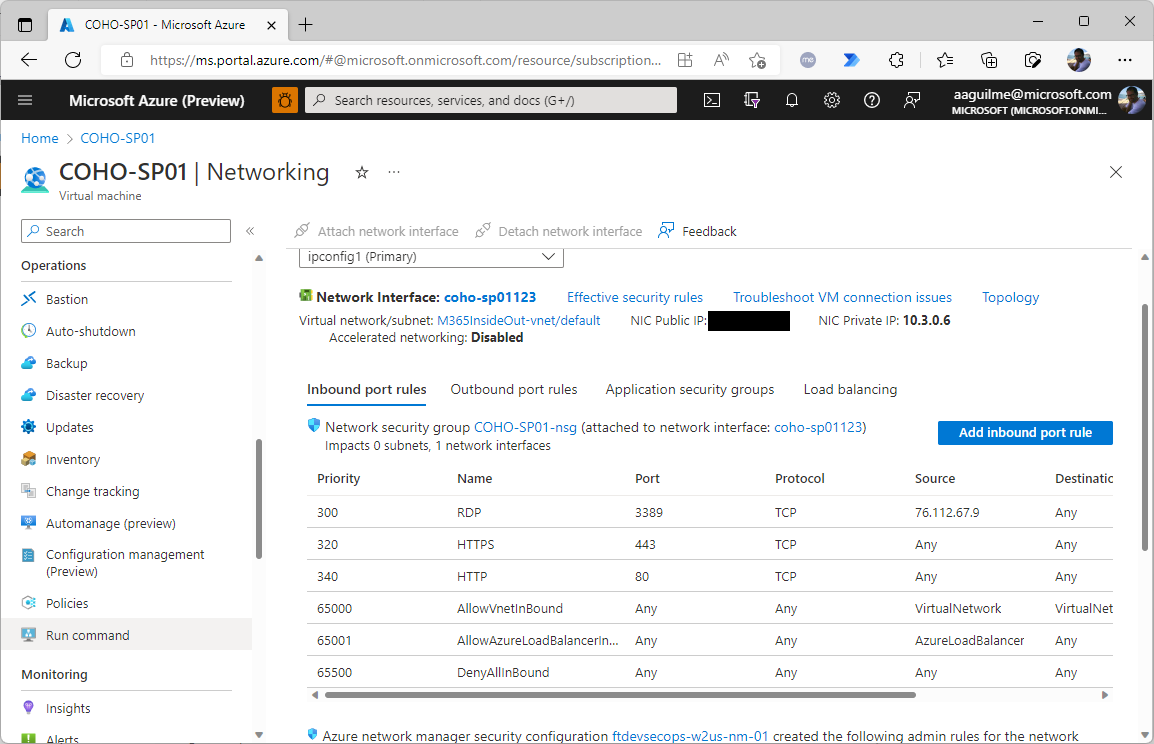
- Select SetRDPPort. This runs a pre-loaded script in the VM agent.
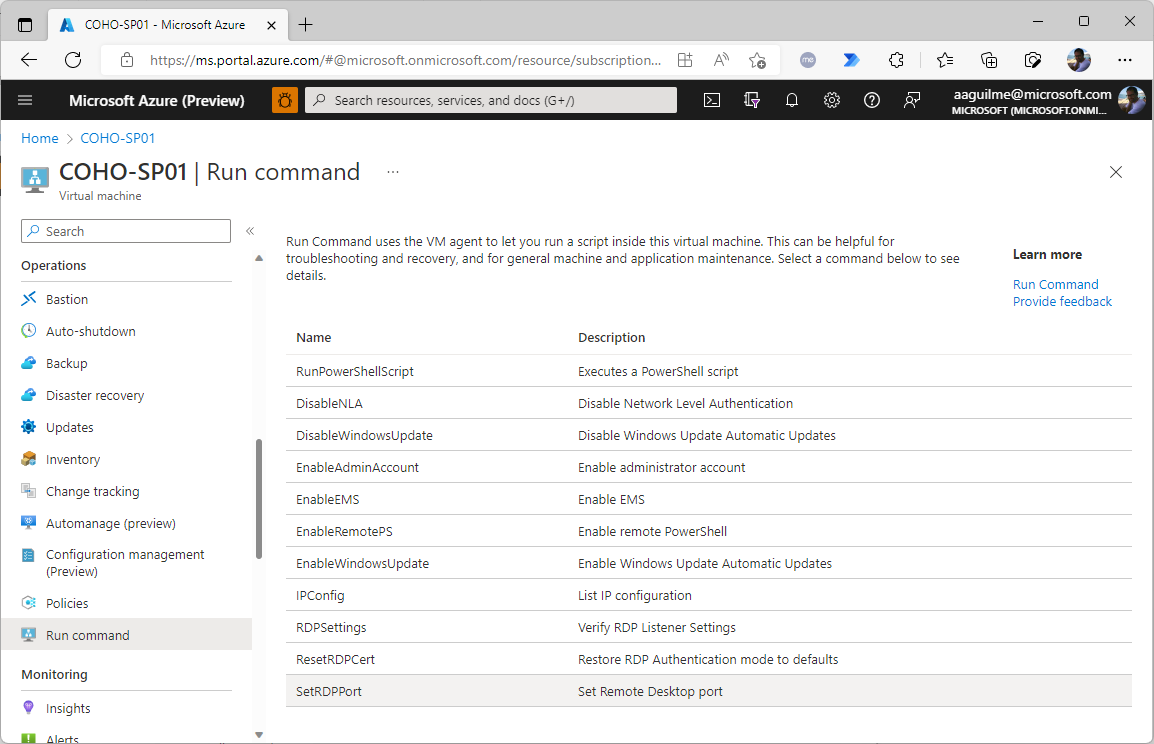
- Set the RDPPORT value and click Run.
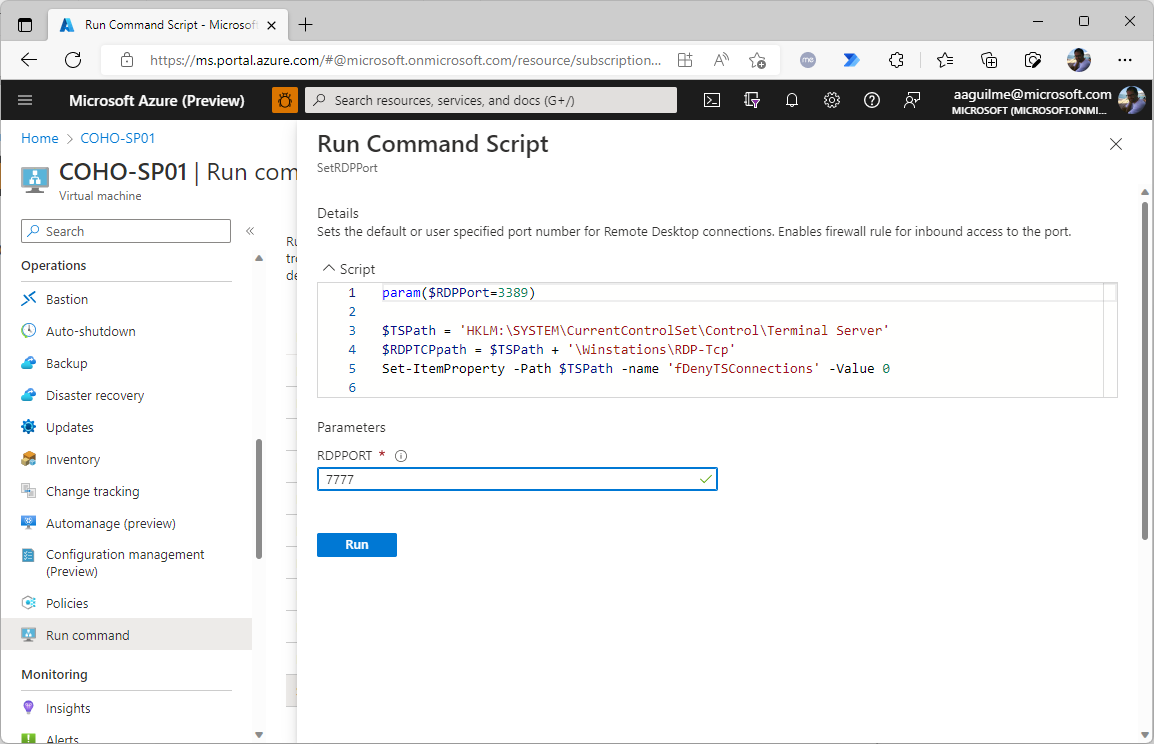
- Review the output to ensure that it has completed.
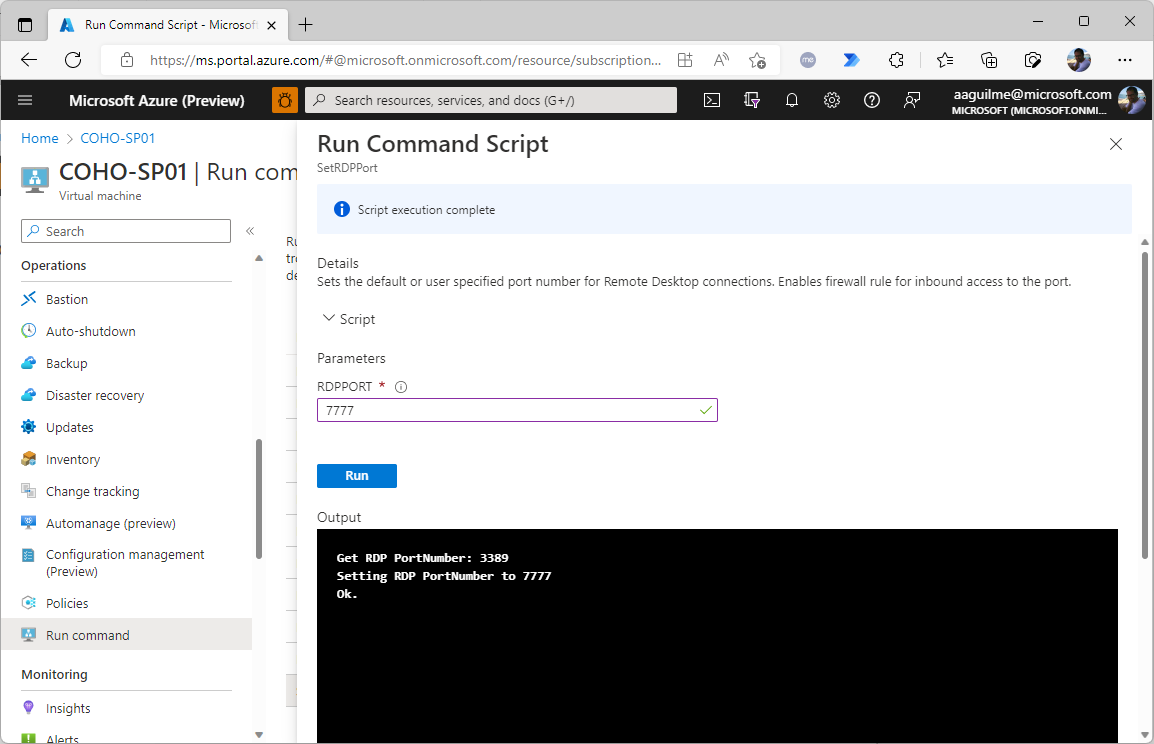
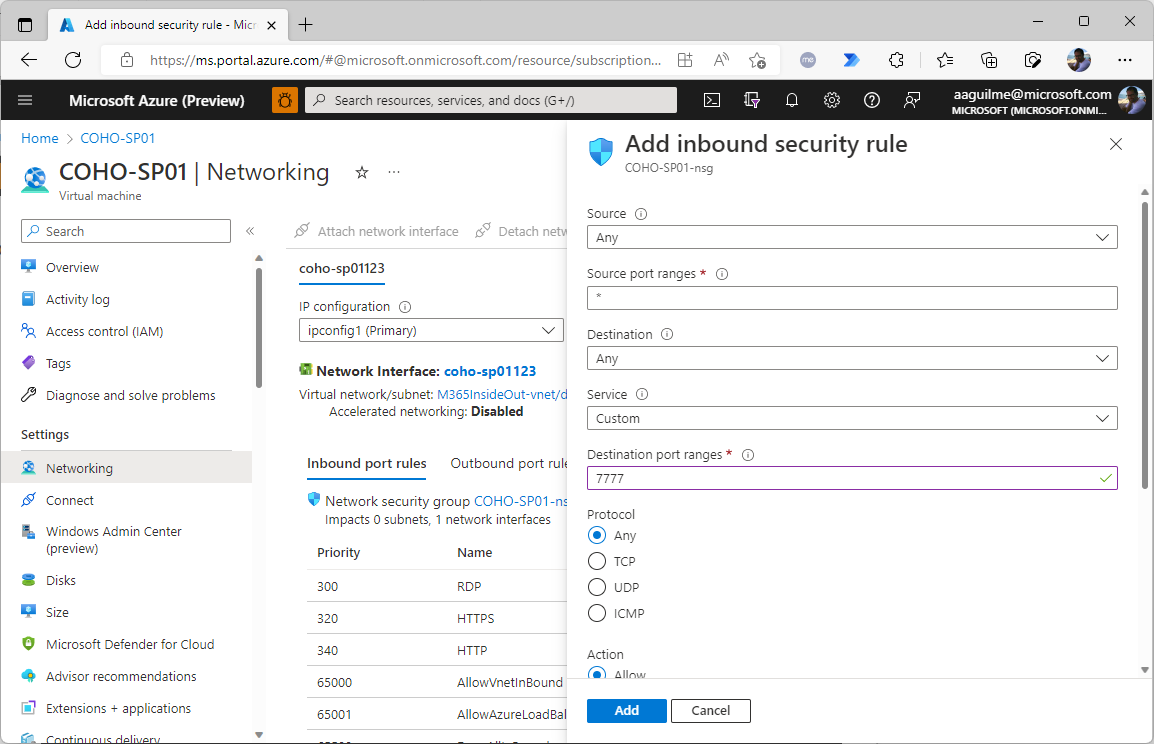
- Under Settings, select Networking.
- Click Add inbound port rule.
- Enter any appropriate network scoping restrictions.
- Set the Destination port ranges value to the one entered in Step 5 and click Add.
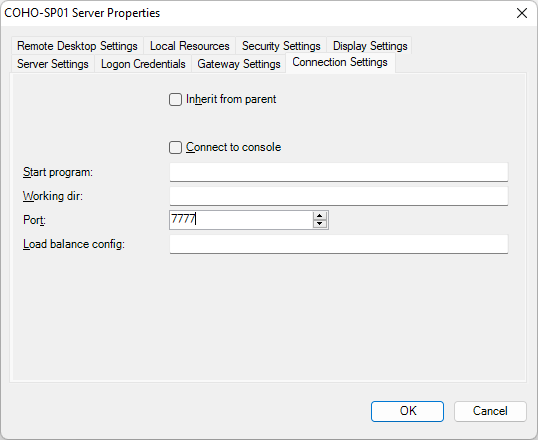
- After the rule has been added, update your RDP client with the appropriate destination port as well.
And you’re off to the races!