

While working on a recent tenant-to-tenant migration, I wanted to start updating my tooling to work with the new MgGraph cmdlets. Am I the only one that thinks “MgGraph” sounds like a value meal?
Anyway.
During the connection process, I ran into this error:
AADSTS50105: Your administrator has configured the application Microsoft Graph Command Line Tools (’14d82eec-204b-4c2f-b7e8-296a70dab67e’) to block users unless they are specifically granted (‘assigned’) access to the application. The signed in user ‘user@domain.com’ is blocked because they are not a direct member of a group with access, nor had access directly assigned by an administrator. Please contact your administrator to assign access to this application.
How to resolve this one?
Background
As it turns out, this customer has configured security for the Graph PowerShell cmdlet. To discover this:
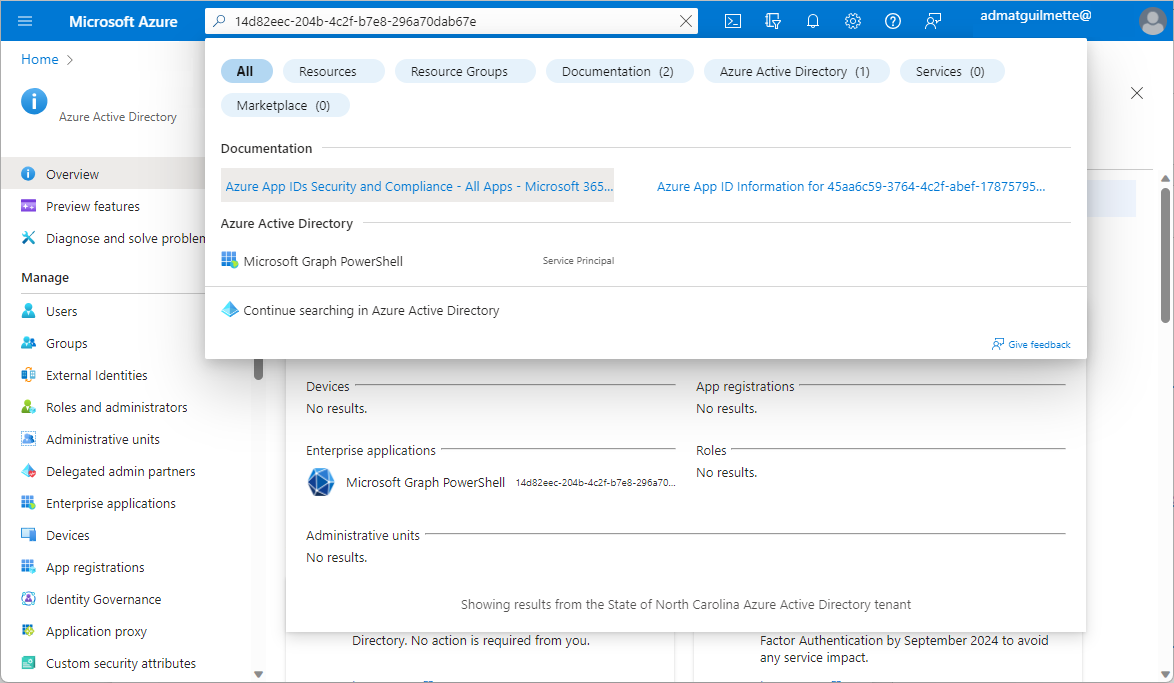
- Navigate to Azure AD portal (https://portal.azure.com) or the new Entra AD portal (https://entra.microsoft.com) and paste the app ID referenced in the error in the Search box itself, and then select Microsoft Graph PowerShell under Azure Active Directory (if using the Azure AD portal) or under Enterprise Applications (if using the Entra admin center).
- Under Manage, select Properties.
- Notice the Assignment required selection has been toggled to Yes.
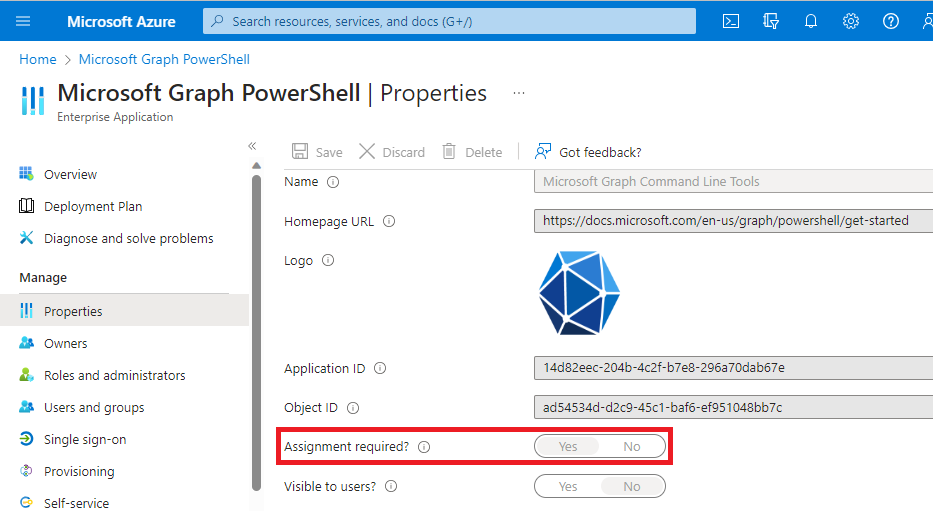
That’s why I’m receiving the error referenced above–Your administrator has configured the application Microsoft Graph Command Line Tools (’14d82eec-204b-4c2f-b7e8-296a70dab67e’) to block users unless they are specifically granted (‘assigned’) access to the application.
So, how to fix it?
Solution
Assignment! That’s how we fix it!
- Under Manage, select Users and groups.
- Select Add user/group.
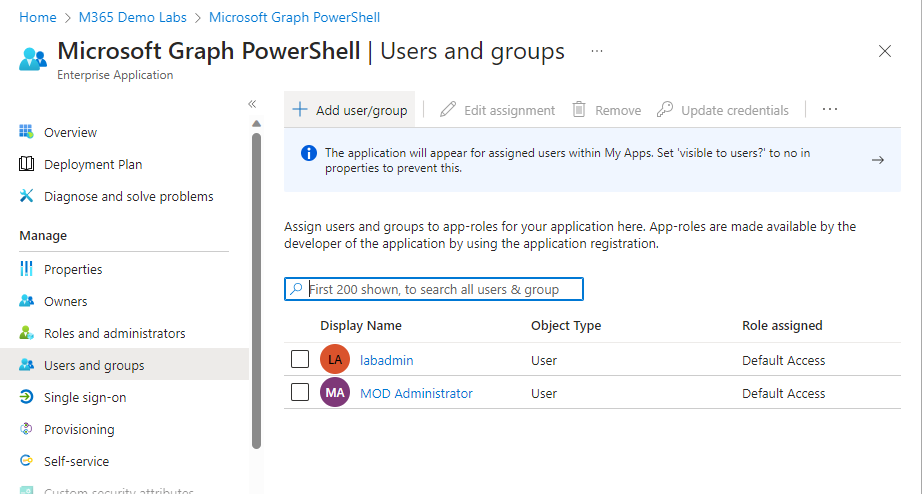
- Under Users, select No user selected and then pick a name from the directory. Click Assign.
The user has now been assigned the role and should be able to use the value meal Microsoft Graph PowerShell to interact with the tenant.