
In today’s episode of “weird ways to do things,” we’ll look at scripting synchronizing a SharePoint library with the OneDrive for Business client.
There are a few ways to skin this cat.
The Right Way
First, I’d recommend using Group Policy. It supports this automatic library synchronization out of the box.
You’ll need the tenant ID as well as the site ID, list ID, and web ID to do this. You can see how to get them in the next section.
The Hard Way
However, you can go the hard way also and do it with the Sync client itself. You’ll need to retrieve the following values:
SiteId
The SiteId is the unique GUID for the site collection. With modern SharePoint online, every site is its own site collection, so this value will likely be the same as the WebId value.
https://<tenant>.sharepoint.com/<site-url>/_api/site/id
For example, let’s look at this site:
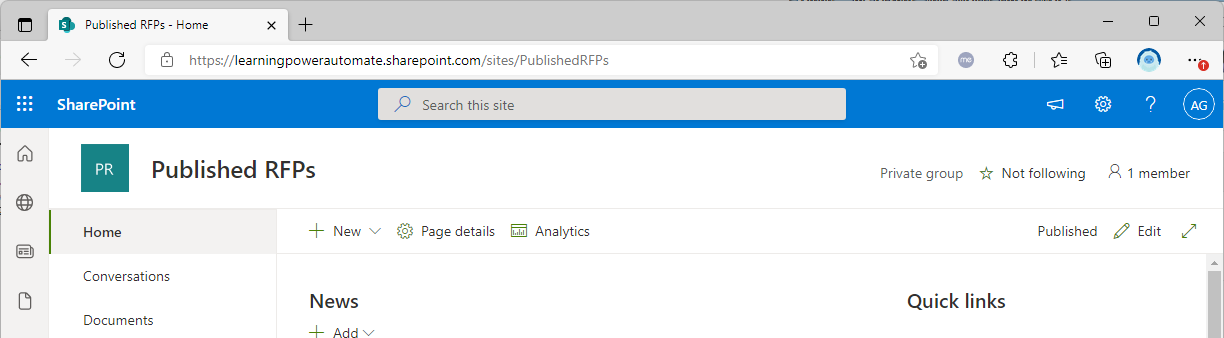
To find the site ID of this, simply append /_api/site/id to the URL:

I’ve highlighted the value that you’re looking for–inside the Edm.Guid property.
WebId
The WebId is the ID for a site (or subsite) in a site collection. With modern SharePoint Online, every site is its own site collection, so this will likely be the same as the SiteId value. In classic SharePoint, you would typically create a site collection, and then individual sites inside it.
You can retrieve the WebId using a method similar to the SiteId. One easy way to retrieve a site’s WebId value is using this URL:
https://<tenant>.sharepoint.com/<site-url>/_api/web/id
Using the same site, I just replaced /site/id with /web/id:

As with the SiteId, it’s stored in the Edm.Guid property returned by the web service.
ListId
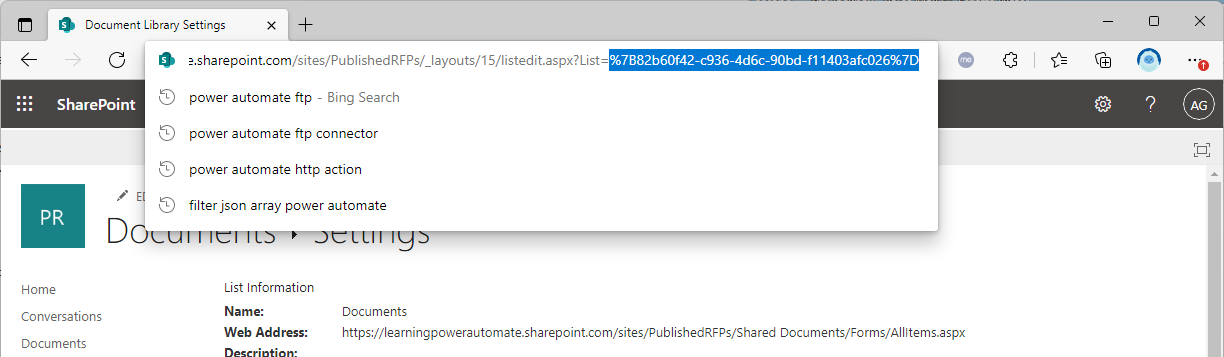
Finding the document library (or list) ID is a little bit more tricky. To obtain this, click the Settings (gear) icon in a SharePoint site and select Library settings.
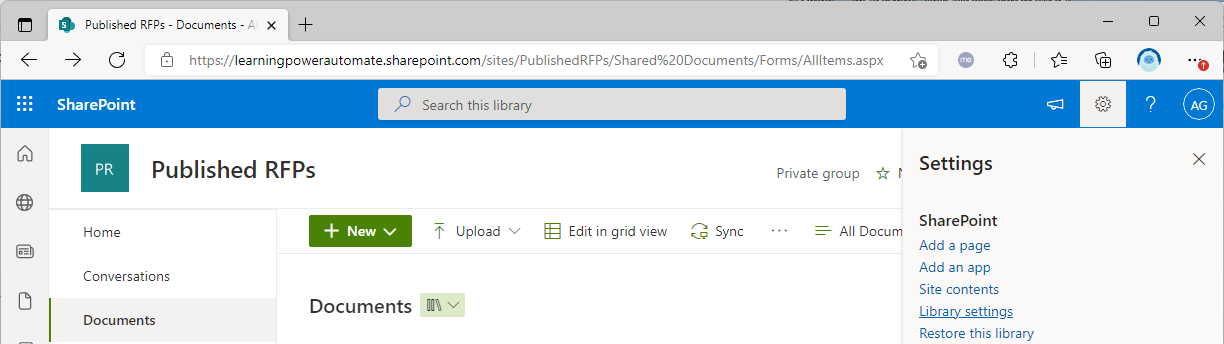
In the URL bar, select everything after List=. That’s the value you’ll need.
WebUrl
This one is pretty easy–it’s the address of the SharePoint site itself:

Putting it all together
Finally, you’ll just add all the pieces together. If you’re scripting it, you’ll need to remember a way to pull in the current username/email address (and, this really only works if you have alignment between SMTP and UPN).
So, we start with this format:
start "C:\windows\explorer.exe" "odopen://sync/?siteId="{<<Site ID>>}"&webId="{<<Web ID>>}"&listId="{<<List ID>>}"&userEmail="%username%@<<domain.com>>"&webUrl="https://<<domain>>.sharepoint.com""
You need to replace the placeholders with the values you got earlier, and then URL-encode the curly braces.
First, we’ll start with filling replacing the fields:
start "C:\windows\explorer.exe" "odopen://sync/?siteId="{0378e5f3-11fe-4ea1-9ac0-f5f9a366ff1e}"&webId={de5b6c0d-ec49-49ea-85d1-b15ca2403f07}&listId={82b60f42-c936-4d6c-90bd-f11403afc026}&userEmail=%username%@%userdnsdomain%&webUrl=https://learningpowerautomate.sharepoint.com/sites/PublishedRFPs"
Seems easy enough. However, you can’t pass it that way through a logon script, so you need to URLEncode the content. You need to replace the following characters:
| Character | URL Encoded value |
|---|---|
| { | %7B |
| } | %7D |
| [space] | %20 |
| : | %3A |
| / | %2F |
You can use a string parser/encoder, such as PowerShell’s [uri]::EscapeDataString() to do it. The result should look similar to the following:
start "C:\windows\explorer.exe" "odopen://sync/?siteId="%7B0378e5f3-11fe-4ea1-9ac0-f5f9a366ff1e%7D"&webId=%7Bde5b6c0d-ec49-49ea-85d1-b15ca2403f07%7D&listId=%7B82b60f42-c936-4d6c-90bd-f11403afc026%7D&userEmail=%username%@%userdnsdomain%&webUrl=https%3A%2F%2Flearningpowerautomate.sharepoint.com%2Fsites%2FPublishedRFPs"
Ta-da!
Now, go do it the right way.