

A few days ago, I was working on a small project for a health care provider where they wanted to leverage some sort of calendar with training tasks and checklists.
The organization makes heavy use of Microsoft Teams, so I immediately thought of Microsoft Planner for organizing, coordinating, and managing the onboarding tasks for the trainers and new employees. This particular organization is looking to onboard nearly 100 people by the end of the calendar year, so some level of automation was going to be necessary to help the training manager and trainers keep up with the task assignments.
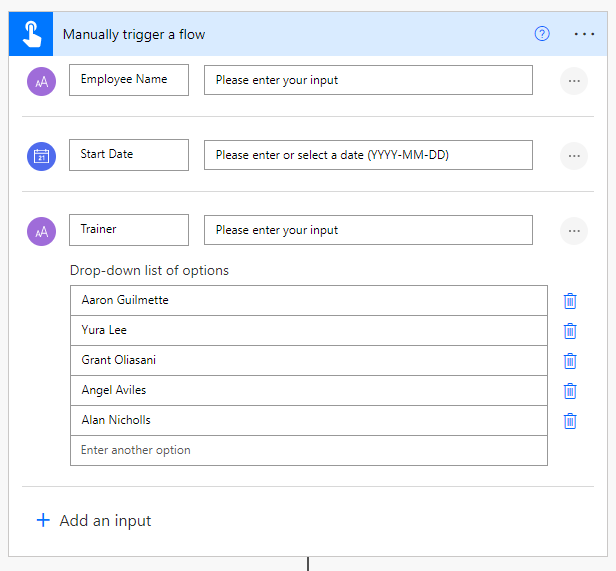
Since every employee goes through the same 6-week onboarding process, the only inputs that were really needed were the employee name, start date, and the trainer. Since we don’t have the ability to look at the Global Address List or retrieve Office 365 group members through a manual button trigger (that I know of), I just populated the list of trainers with the GAL display name:
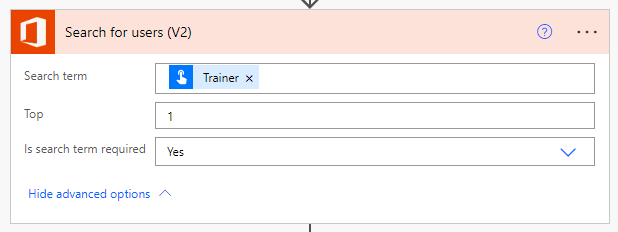
Since the Trainer names are just string values, they need to be resolved against Office 365 Users so they can be assigned a task. This was easy enough with the Search for Users (V2) action:
The customer had a desire to color code the tasks/buckets on a per-trainer basis. The Planner calendar doesn’t display tasks with their label color (yet), but in the event that it does, we’ll be ready. 🙂
One of the challenges I ran into with regards to programmatically assigning task labels is how Planner tasks can be assigned multiple labels. From the way it’s implemented, there’s not a way to pass an array of label values of any sort to a particular task. Instead, each of the 25 labels/colors has its own Boolean choice:
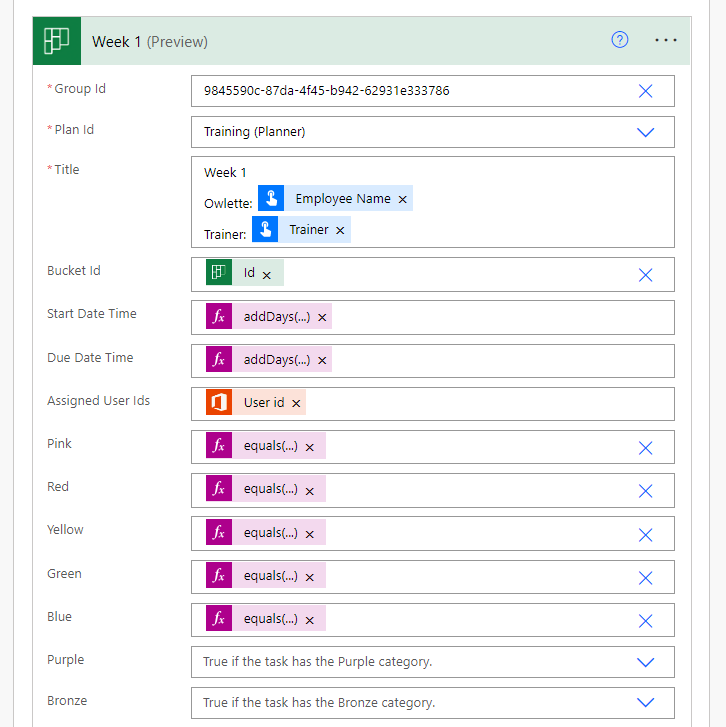
Instead of declaring a ton of variables (as I’d seen in some examples), I decided to take the approach of using an expression for each color. Each label evaluates to “True” if the task is set to that label/color/category. To get it to flip, all you need to do is use an expression that compares a two text strings. If they match, then the will evaluate to True. I used the equals expression:
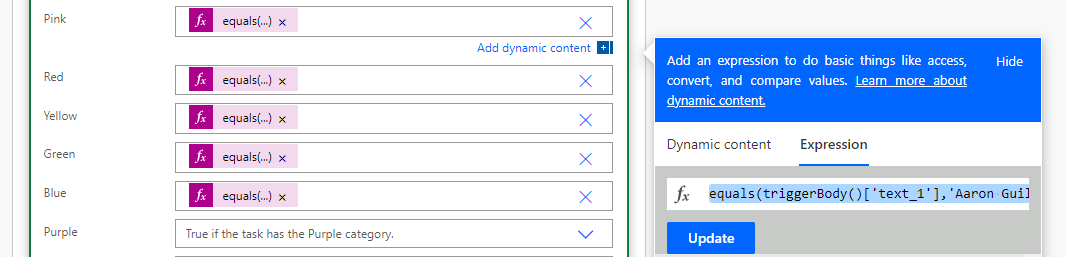
The expression, in this case, for each color is simple:
equals(triggerBody()['text_1'],'Trainer Display Name Value')
['text_1'] is the placeholder for the Manually trigger a flow text field for the Trainer’s name.'Trainer Display Name Value' with the actual text you want to match to the color. If the value in the ['text_1'] variable (the value that’s selected during the drop-down) matches this hard-coded string value 'Trainer Display Name Value', the expression evaluates to True and will enable the label.