

If you’re like a lot of folks, you probably click through dialog boxes and prompts on autopilot because you (think) you’ve seen them a million times. Sometimes, though, that can have unwanted (but not necessarily unexpected) consequences.
For example, let’s say you are working with a variety of Microsoft 365 tenants (such as a dev and production tenant), and as such, you create multiple Edge browser profiles. Once, upon logging in to the Azure portal, you see a prompt to “Always open in this profile.” You’re in a rush, so you think it’s a just new take on the “Keep me signed in” wording and click OK.
But, it’s not.
Now, every time you try to navigate to the portal, instead of opening in the browser profile that you’re using, Edge redirects you wrong instance. What’s going on?
You have likely inadvertently saved a profile preference for the site. So, how do you fix it?
- Open Edge. Any Edge session will do.
- Click the ellipsis (…) at the top of the browser and select Settings and select Profiles. Or, in the navigation bar, type
edge://settings/profiles. - Select Profile preferences.
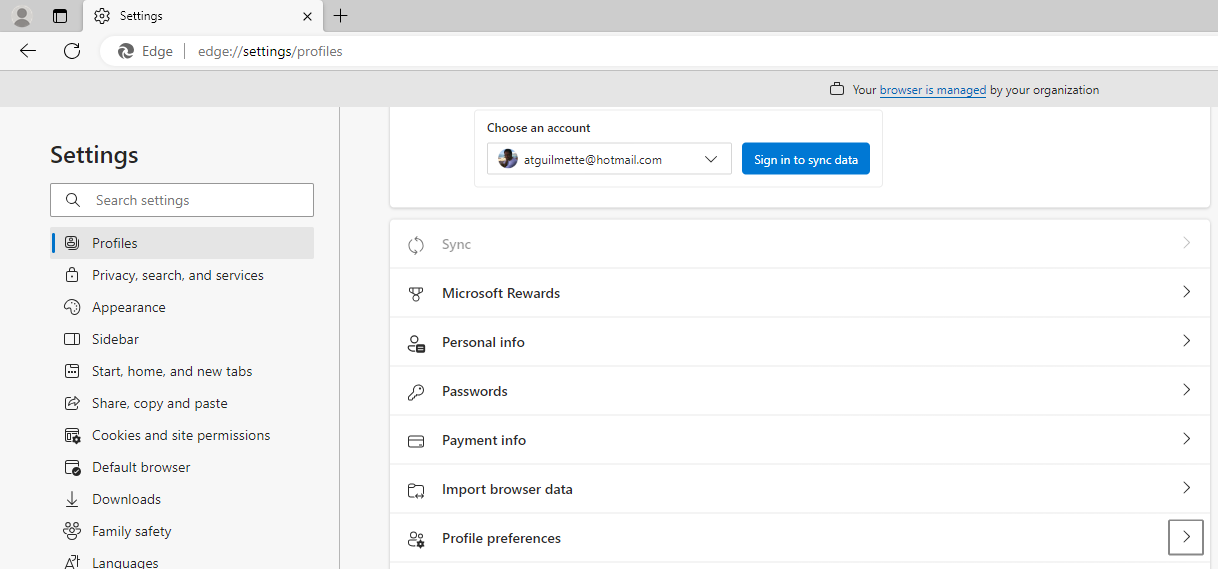
- Scroll to the Profile preferences for sites section. The sites you’re experiencing this behavior with are likely listed here.
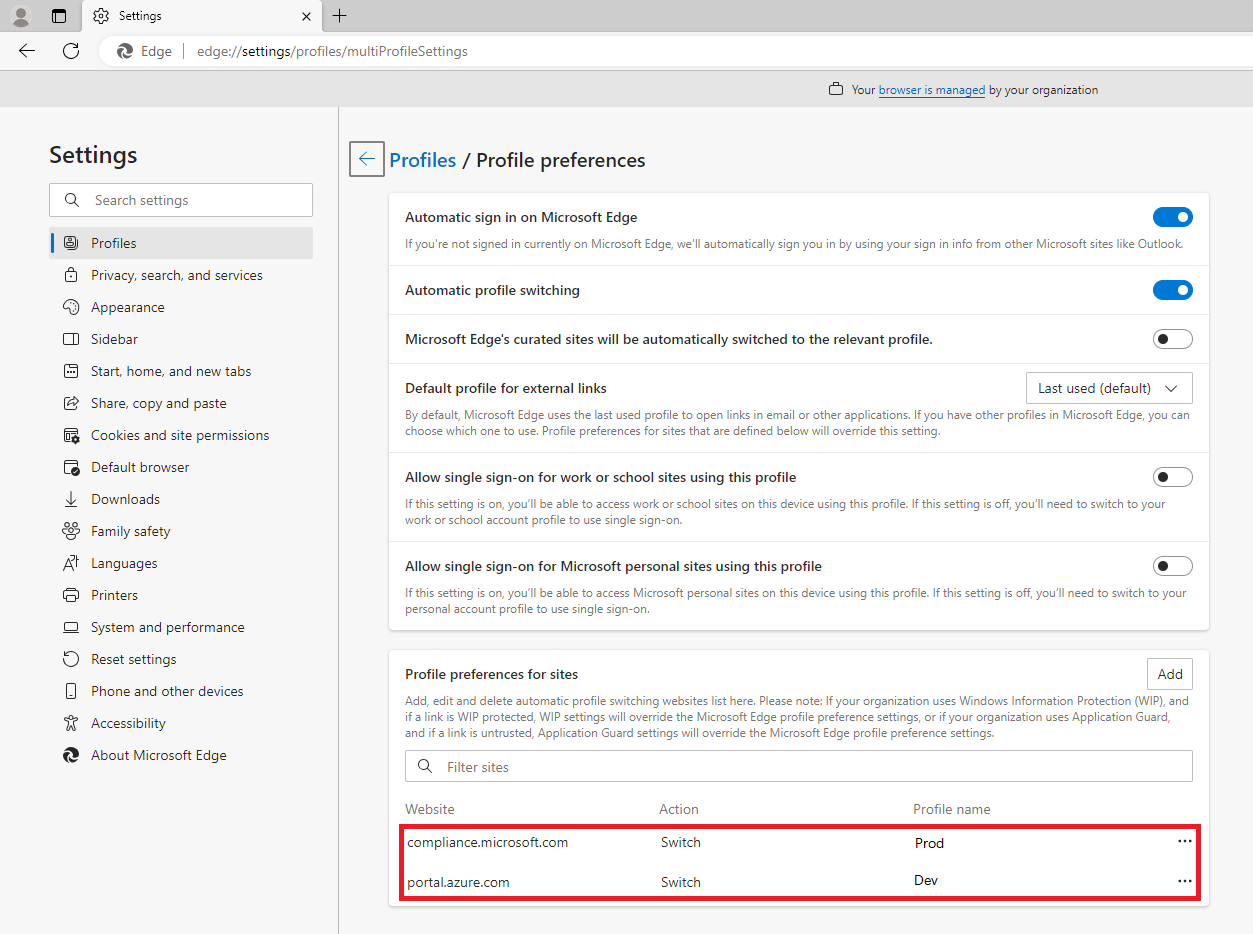
- Select the ellipsis (…) next to the site you want to change. You can select Delete to delete the mapping or Edit to select a new profile.
The change will take effect immediately across all profiles