

Update: This post has been updated with information from the newer Get-MgSubscribedSKU cmdlets.
Background
During a conversation with my peers, the discussion came up on how to determine what environment a tenant is located in (usually between Commercial and Government). What are some ways you can do it?
From the tenant
Typically, the easiest way to determine this is to log in and look at your account SKUs. Most customers will be in the Worldwide Commercial environment. Education customers (that have EDU or A-plans) are special license SKUs available only to educational institutions, but they also live in the worldwide commercial cloud.
Get-MgSubscribedSKU
Microsoft has been updating the cmdlets, deprecating the legacy MSOnline module and AzureAD cmdlets. The new way to get this information is using the Get-MgSubscribedSku cmdlet.
If you don’t have the cmdlets yet, you’ll need to install them using:
Install-Module Microsoft.Graph
Once you have those cmdlets installed, you’ll also need to connect to the Graph endpoint for your tenant. With Microsoft Graph, you need to specify a scope when connecting–scopes essentially define the set of permissions that you’re going to use during a session. The most popular scope options are Directory.Read.All and Directory.ReadWrite.All, while the least-privileged scope you can use to view account SKU information is Organization.Read.All.
Connect-MgGraph -Scopes Organization.Read.All
After supplying your credential, you’ll be prompted to consent to the permissions being granted:
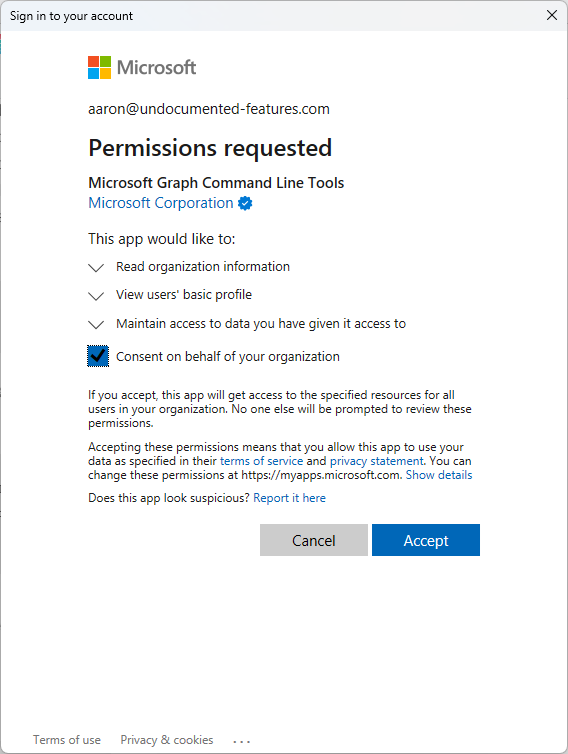 Once that’s all squared away, you can try out the
 Get-MgSubscribedSku cmdlet by itself to see some not-so-useful information.
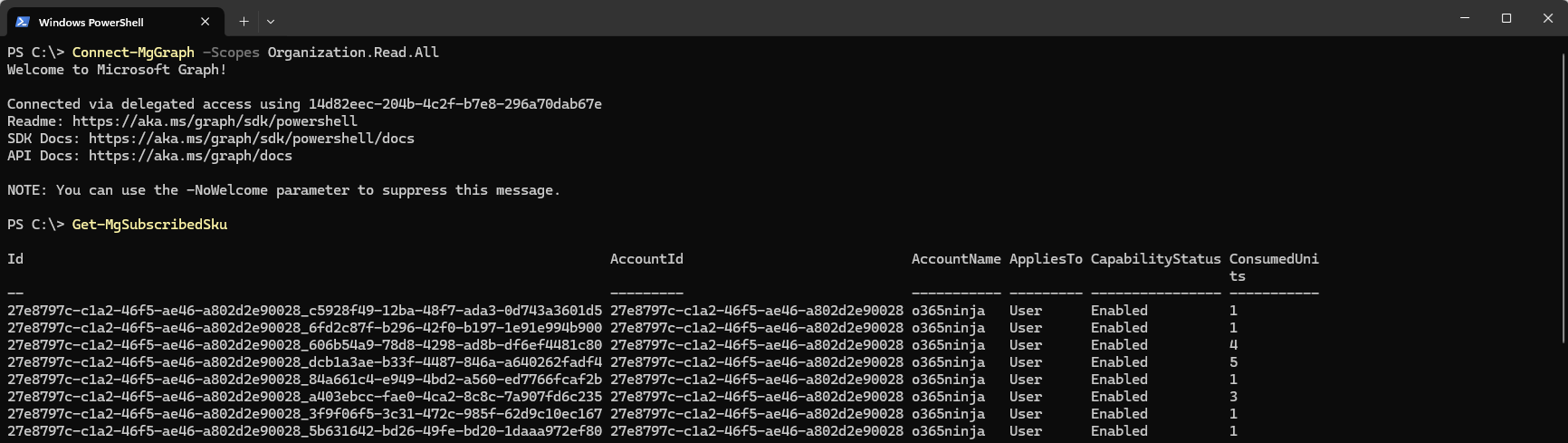 That’s what you get with Graph–a bunch of GUIDs. To make it more useful, you’ll need to download the Microsoft SKU table and then match it up (or copypasta the following code snippet to see it all together):
# Download Microsoft SKU table to temp location
Invoke-WebRequest -Uri "https://download.microsoft.com/download/e/3/e/e3e9faf2-f28b-490a-9ada-c6089a1fc5b0/Product%20names%20and%20service%20plan%20identifiers%20for%20licensing.csv" -OutFile "$($env:temp)\licenses.csv"

# Import SKU table
$SkuTable = Import-Csv "$($env:temp)\licenses.csv"

# Get SKUs in tenant
$SubscribedSkus = Get-MgSubscribedSku -All -Property @("SkuId", "ConsumedUnits", "PrepaidUnits") | Select-Object *, @{Name = "ActiveUnits"; Expression = { ($_ | Select-Object -ExpandProperty PrepaidUnits).Enabled } } | Select-Object SkuId, ActiveUnits, ConsumedUnits

# Instantiate a PSCustomObject to hold the resolved SKU names
[array]$UpdatedSubscribedSkus = New-Object PSCustomObject

# Loop through the SubscribedSkus array and resolve the GUID to the corresponding object in the SkuTable variable
$SubscribedSkus | Foreach-Object {
     $CurrentSku = $_
     $MatchedSku = $SkuTable | ? { ($_.GUID -match $CurrentSku.SkuId) }
     If ($MatchedSku)
          {
               $obj = [pscustomobject]@{
               SkuName = ($MatchedSku.Product_Display_Name)[0]
               StringId = ($MatchedSku.String_Id)[0]
               SkuId = ($MatchedSku.GUID)[0]
               ActiveUnits = $CurrentSku.ActiveUnits
               ConsumedUnits = $CurrentSku.ConsumedUnits
               }
          $UpdatedSubscribedSkus += $obj
          }
}
The output is stored in $UpdatedSubscribedSkus:
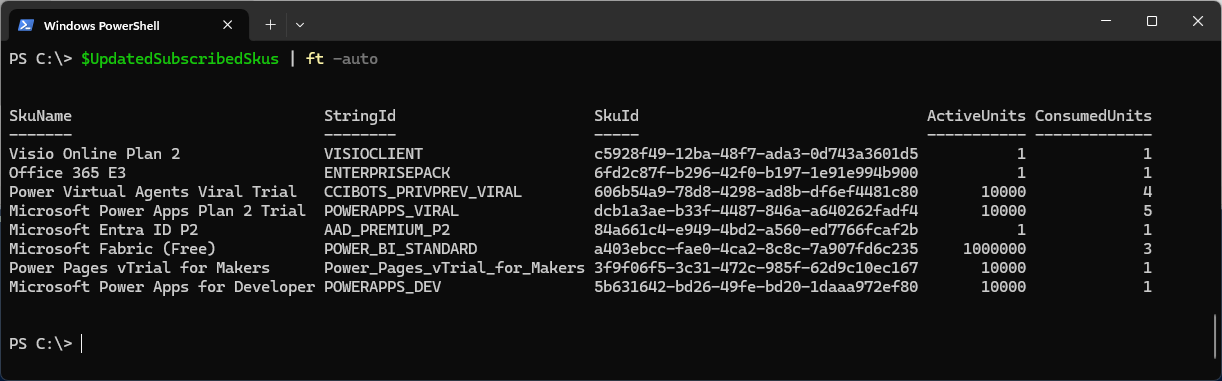 The
The StringID column will show the information you’re looking for with regards to tenant location. Special SKU name suffixes s to look for:
| SKU Suffix | Description |
| _GOV | Microsoft 365 Government Community Cloud Moderate |
| _USGOV_GCCH | Microsoft 365 Government Community Cloud High |
| _USGOV_DOD | Microsoft 365 Government Community Cloud DOD |
Legacy Get-MsolAccountSku
While this is deprecated, you never know when it might be useful.
Using the MSOnline PowerShell module (in the olden days), the cmdlet Get-MsolAccountSku would return a list of SKUs available in your tenant.
In a commercial tenant, they’d look something like this:
AccountSkuId ActiveUnits WarningUnits ConsumedUnits
------------ ----------- ------------ -------------
EMS340903:EMSPREMIUM 100 0 98
EMS340903:ENTERPRISEPREMIUM 25 0 24
EMS340903:ATP_ENTERPRISE 0 0 0
In a government tenant, the SKUs typically ended in _GOV.
AccountSkuId ActiveUnits WarningUnits ConsumedUnits
------------ ----------- ------------ -------------
CAGOVSAMPLE:ENTERPRISEPACK_GOV 1000 0 50
CAGOVSAMPLE:STANDARDPACK_GOV 500 0 0
CAGOVSAMPLE:SHAREPOINTWAC_GOV 500 0 0
Microsoft 365 Admin Center
You can also view SKU names when working with licenses in the Microsoft 365 admin center. Government SKUs, when viewed through the portal, also have “for Government” in the display name.
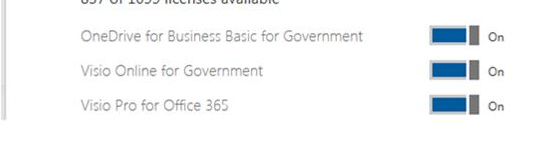
In this particular example, it’s important to note that there is the presence of at least ONE SKU for Government, which means that we’re looking at a Government tenant. Most of the time, all of the SKUs have friendly name descriptions that include GOV (for government tenants), but you might have a few that don’t display it. If you have other SKUs with GOV in the name, though, you can rest assured that you’re in a GCC, GCCH, or GCC-DoD tenant.
We also have tenants for education, which (not surprisingly), have their own SKU names:
AccountSkuId ActiveUnits WarningUnits ConsumedUnits
------------ ----------- ------------ -------------
MYEDU:STANDARDWOFFPACK_STUDENT 1000 0 50
MYEDU:STANDARDWOFFPACK_IW_STUDENT 500 0 0
MYEDU:STANDARDWOFFPACK_FACULTY 500 0 0
As I mentioned earlier, Education-based SKUs exist in Worldwide Commercial, so if you have those SKUs in your environment, you’re in a commercial tenant.
Without Tenant access
You also don’t have to look at the portal–general tenant data can also be discovered from the Microsoft OpenID Connect endpoint for the tenant–as long as you know either a tenant name, one of a verified domains in the tenant, or the tenant GUID.
Browser
Using a web browser, try one of these queries:
https://login.microsoftonline.com/{tenant}.onmicrosoft.com/.well-known/openid-configuration
https://login.microsoftonline.com/{verified-domain.com}/.well-known/openid-configuration
https://login.microsoftonline.com/{tenant-guid}/.well-known/openid-configuration
You should get some JSON returned to you in the browser:

Many of the GCC customers that I have seen will have the following JSON output near the bottom:
"tenant_region_scope":"NA",
"tenant_region_sub_scope":"GCC"
I’ve seen a few instances where GCC customers don’t have a sub-scope listed (usually older tenants, created pre-2017), but for the most part, everything has been updated.
PowerShell
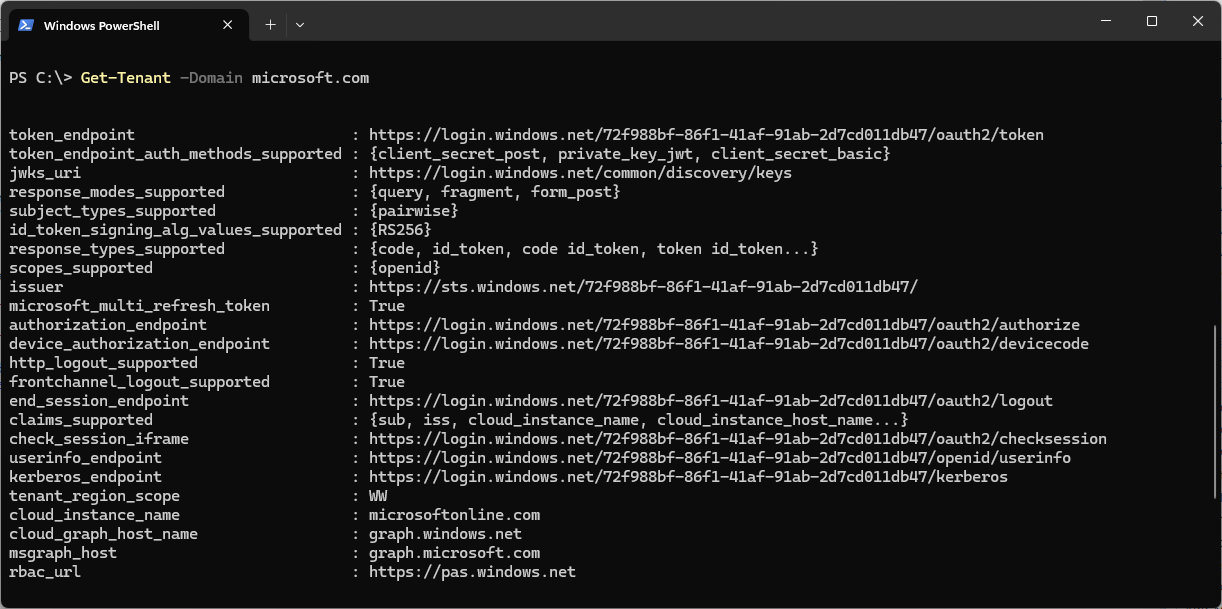
Finally, my favorite way. There’s some other neat stuff that can be determined by querying the realm info:
You can add this function to your PowerShell session:
Function Get-Tenant
 {
  [CmdletBinding()]
  [OutputType([string])]
  PARAM (
    [Parameter(ParameterSetName = 'Domain', Position=1,Mandatory=$true)][ValidateNotNullOrEmpty()][String]$Identity
  )
  $URI = "https://login.windows.net/$($Identity)/.well-known/openid-configuration"
  try {
    $Response = Invoke-WebRequest -UseBasicParsing -Uri $URI -Method Get -ErrorAction Stop
    $json = ConvertFrom-Json -InputObject $Response.Content
    }
  catch {
    "Tenant not found."
    Break
    }

  Switch($json.tenant_region_scope)
  {
      WW { $FederationData = Invoke-RestMethod -Uri "https://login.microsoftonline.com/common/userrealm/?user=testuser@$Identity&api-version=2.1&checkForMicrosoftAccount=true" }
      NA { $FederationData = Invoke-RestMethod -Uri "https://login.microsoftonline.com/common/userrealm/?user=testuser@$Identity&api-version=2.1&checkForMicrosoftAccount=true" }
      EU { $FederationData = Invoke-RestMethod -Uri "https://login.microsoftonline.com/common/userrealm/?user=testuser@$Identity&api-version=2.1&checkForMicrosoftAccount=true" }
      USGov { $FederationData = Invoke-RestMethod -Uri "https://login.microsoftonline.us/common/userrealm/?user=testuser@$Identity&api-version=2.1&checkForMicrosoftAccount=true" }
      Default { $FederationData = Invoke-RestMethod -Uri "https://login.microsoftonline.com/common/userrealm/?user=testuser@$Identity&api-version=2.1&checkForMicrosoftAccount=true" }
  }

  $json | Add-Member -Name "FederationBrandName" -MemberType NoteProperty -Value $FederationData.FederationBrandName
  $json | Add-Member -Name "FederationProtocol" -MemberType NoteProperty -Value $FederationData.federation_protocol
  $json | Add-Member -Name "NamespaceType" -MemberType NoteProperty -Value $FederationData.NamespaceType
  $json | Add-Member -Name "AuthUrl" -MemberType NoteProperty -Value $FederationData.AuthURL

  Return $json
}
Then, just run Get-Tenant and use either the GUID, tenant ID, or any of the domains verified in the tenant:
 Happy digging!