
If you’ve spent any time in an organization that takes least privilege seriously, you’ve met Privileged Identity Management. PIM is wonderful. PIM is responsible. PIM is the security equivalent of eating your vegetables.
PIM is also the reason I’ve spent a measurable percentage of my adult life clicking Activate, typing a justification, waiting for a blade to load, clicking Activate again, and then discovering I needed a different role anyway.
Someone needed to complain about it, and today, that person is me.
So, like any reasonable person faced with a repetitive task, I spent far more time automating it than I would have spent just doing it. That’s the job. 6 minutes doing a task or 11 hours automating it. The choice is clear.
The problem
Here’s my typical morning:
- Open the Entra admin center.
- Navigate to Identity Governance > Privileged Identity Management > My roles. (The portal will move this by the time you read this post. That’s fine. It’s tradition.)
- Find the role I need.
- Click Activate.
- Get prompted for MFA, because the role requires an authentication context.
- Type a justification. “Doing admin things.” Again.
- Repeat steps 3 through 6 for the other three roles I need, because nothing in Microsoft 365 requires just one role–unless that role is Global Admin. But then that defeats the whole purpose of least privilege, doesn’t it?
- Refresh the page and stare at “Activation in progress” like it owes me money.
There are some PowerShell examples floating around that activate a role, but most of them hard-code which roles get activated. That works great right up until Tuesday, when you need Exchange Administrator instead of SharePoint Administrator, and now you’re editing a script at 7:45 AM before your coffee has kicked in.
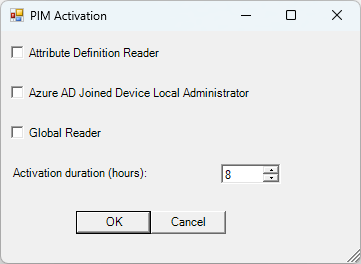
What I wanted was simple: show me the roles I’m eligible for, let me tick some boxes, pick how long I want them, and go.
The solution
Enter Interactive_PIM_Request.ps1. It does the following:
- Makes sure the Microsoft Graph modules you need are installed (and installs them to the current user scope if they’re not)
- Lets you pick which Microsoft Edge profile to sign in with (because you have, like, eleven of them, and chances are one of them is for your admin account)
- Signs you in with an authentication context claim so PIM roles protected by Conditional Access don’t reject you
- Looks up every role you’re eligible for
- Builds a checkbox form dynamically from that list
- Lets you choose an activation duration from 1 to 8 hours
- Submits a self-activation request for every role you checked
No hard-coded role names. No portal blades. No typing “Doing admin things” four times (that’s what the script is for).
How it works
Let’s walk through the interesting parts. I’ll skip the boring bits, though I’ll be honest: with Windows Forms in PowerShell, most of it is boring bits. A lot of $thing.Left = 10.
Step 1: Module wrangling
Before we do anything, the script makes sure Microsoft.Graph.Authentication, Microsoft.Graph.Users, and Microsoft.Graph.Identity.Governance are available.
You’ll notice it tries Import-Module first instead of Get-Module -ListAvailable. That’s deliberate. If you’ve got a few dozen versions of the Graph SDK lying around in your PSModulePath (and let’s be real, you do), Get-Module -ListAvailable can take so long you’ll start wondering whether PowerShell has quietly retired.
try {
    Import-Module -Name $moduleName -ErrorAction Stop
    continue
}
catch {
    # Not loaded yet - fall through and install it below
}
If the import fails, it installs the module for the current user, along with the NuGet provider if needed. No admin rights required.
I’d like it noted for the record that my disdain for the Microsoft Graph cmdlets is ongoing and well-documented. I use them anyway. Character growth.
Step 2: Pick your Edge profile
If you’re a consultant, a multi-tenant admin, or someone who just enjoys chaos, you probably have a separate Edge profile for every tenant you touch. The script reads Edge’s Local State file, pulls out your profiles, and pops up a picker:
$LocalStatePath = "$env:LOCALAPPDATAMicrosoftEdgeUser DataLocal State"
$LocalState = Get-Content -Raw -Path $LocalStatePath | ConvertFrom-Json
$Profiles = $LocalState.profile.info_cache
Each entry shows the profile name and the signed-in account, so you can tell “Work” apart from “Work (the other one)” and “Work – DO NOT USE.”
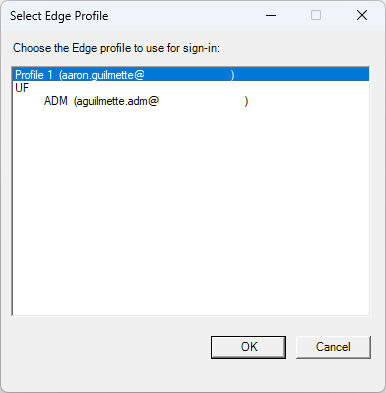
You might be wondering why it doesn’t just launch an InPrivate window. InPrivate ignores your cached sign-in state, which defeats the whole point of picking a profile. Ask me how I know. And, if you have MCAS or CAs deployed that check for device compliance, InPrivate means you’ll fail that check.
Step 3: Authentication context (a.k.a. the reason this script exists)
This is where it gets fun. And by “fun,” I mean “the part that ate an entire afternoon.”
Many organizations protect privileged roles with a Conditional Access authentication context. When you activate the role, Entra ID wants proof that you satisfied a specific policy (phishing-resistant MFA, a compliant device, a blood oath, whatever your security team decided). If the token you’re carrying doesn’t include that claim, the activation request just… doesn’t work.
Connect-MgGraph doesn’t give you a nice switch for “please include auth context c1.” So the script builds the authorization request itself and adds the claim:
$claimValue = "c1" # The value of the authentication context claim from the conditional access policy

$additionalClaims = [ordered]@{
    "access_token" = [ordered]@{
        "acrs" = [ordered]@{ "essential" = $true; "value" = $claimValue }
    }
}
$encodedClaims = [System.Web.HttpUtility]::UrlEncode(($additionalClaims | ConvertTo-Json -Compress))
Then it does the OAuth authorization code flow the old-fashioned way:
- Spins up a tiny
HttpListeneronhttp://localhost:8080 - Opens the sign-in URL in the Edge profile you selected
- Waits for Entra ID to redirect back with an authorization code
- Trades that code for an access token at the
/tokenendpoint (also asking for thexms_ccclaim withcp1, which tells Entra ID the client can handle claims challenges)
When it works, your browser says “Authorization code received. You can close this window.” It’s the most satisfying sentence in identity management.
Then we hand the token to Graph:
$graphToken = $accessToken | ConvertTo-SecureString -AsPlainText -Force
$null = Disconnect-MgGraph -ErrorAction SilentlyContinue
Connect-MgGraph -NoWelcome -AccessToken $graphToken
The -NoWelcome is there because I’ve read the Graph welcome banner enough times to recite it at parties. I don’t get invited to many parties.
Step 4: Find out what you’re allowed to be
Next, the script figures out who you are and which roles you’re eligible to activate:
$myRoles = Get-MgRoleManagementDirectoryRoleEligibilitySchedule `
    -ExpandProperty RoleDefinition `
    -All `
    -Filter "principalId eq '$currentUser'" |
    Sort-Object { $_.RoleDefinition.DisplayName }
Sorted alphabetically, because I’m not an animal.
If you aren’t eligible for anything, the script tells you so and exits. Gently. It doesn’t judge. (I might, a little.)
Step 5: The dynamic part
Here’s the “dynamic” in Dynamic PIM role activation. The script builds a Windows Form sized to however many roles you have, with one checkbox per role:
$formHeight = 150 + ($myRoles.Count * 40)

for ($i = 0; $i -lt $myRoles.Count; $i++) {
    $checkbox = New-Object System.Windows.Forms.CheckBox
    $checkbox.Text = $myRoles[$i].RoleDefinition.DisplayName
    $checkbox.Left = 10
    $checkbox.Width = 300
    $checkbox.Top = $top
    $form.Controls.Add($checkbox)
    $checkboxes[$i] = $checkbox
    $top += 40
}
Three eligible roles? Small, tidy form. Twenty-seven eligible roles? Tall form, and maybe a conversation with whoever does your access reviews. Not my circus; not my monkeys.
The checkboxes are keyed by index, not display name. That matters if you’re eligible for the same role at different scopes (like User Administrator for two different administrative units). Keying by name would make one of them disappear, and then you’d spend twenty minutes wondering why you can’t reset passwords in Ohio.
Everything starts unchecked. The script won’t activate anything you didn’t ask for. Least privilege, remember? Vegetables.
Step 6: How long do you want to be powerful?
At the bottom of the form, there’s a spinner for activation duration, from 1 to 8 hours, defaulting to 8:
$durationSpinner.Minimum = 1
$durationSpinner.Maximum = 8
$durationSpinner.Value = 8
The value becomes an ISO 8601 duration (4 becomes PT4H), because apparently “4 hours” was too easy to read.
If your PIM policy caps activation lower than 8 hours, pick something within the limit, or the request will be rejected. Or adjust the script yourself. It’s free and it’s PowerShell.
Step 7: Make it so
Finally, for each checked role, the script submits a selfActivate request:
$params = @{
    Action           = "selfActivate"
    PrincipalId      = $r.PrincipalId
    RoleDefinitionId = $r.RoleDefinitionId
    DirectoryScopeId = $r.DirectoryScopeId
    Justification    = "$currentName Enable $($r.RoleDefinition.DisplayName)"
    ScheduleInfo     = @{
        StartDateTime = Get-Date
        Expiration    = @{
            Type     = "AfterDuration"
            Duration = $activationDuration
        }
    }
}

New-MgRoleManagementDirectoryRoleAssignmentScheduleRequest -BodyParameter $params -ErrorAction 'SilentlyContinue'
The justification is generated for you: your name, “Enable,” and the role name. It’s not poetry, but it’s more descriptive than “Doing admin things,” and your auditors will appreciate the consistency. Auditors love consistency. It’s their love language.
You could add a param entry for something specifying a justification input on the command line. Maybe something like $justification, and then drop that in the Justification definition of the hash table, if you’re so enterprising.
Using it
- Download the script.
- Open it and update the variables at the top:
$tenantId: your tenant ID. (Please don’t activate roles in mine.)$claimValue: the authentication context ID used by your Conditional Access policy (c1,c2, and so on). You’ll find it under Protection > Conditional Access > Authentication contexts.
- Run it:
.Interactive_PIM_Request.ps1- Pick your Edge profile.
- Sign in and satisfy whatever Conditional Access wants from you today.
- Tick the roles you want, choose a duration, and click OK.
- Go get coffee with all the time you’ve saved. You’ve earned it.
A few things to know
Because this is Undocumented Features, here are some, uh, undocumented features:
- It uses the Microsoft Graph PowerShell SDK’s client ID (
14d82eec-204b-4c2f-b7e8-296a70dab67e). If your org blocks that app or requires its own app registration, swap in your own client ID and make surehttp://localhost:8080is a registered redirect URI. - Port 8080 needs to be free. If some other local service is already sitting on it, the listener will fail. Change
$redirectUriif needed. - The Edge path is hard-coded to
C:\Program Files (x86)\Microsoft\Edge\Application\msedge.exe. If Edge lives somewhere else on your machine, update that line. - Activation errors are quiet. The request uses
-ErrorAction SilentlyContinue, so if a role needs approval, requires a ticket number, or exceeds the max duration, you won’t get a dramatic red wall of text. Check My roles in the portal to confirm, or change it toStopif you enjoy being yelled at. - Roles that require approval will submit a request and then wait for a human, exactly like the portal. The script is fast. Your approvers are not.
- This covers Entra ID directory roles. PIM for Groups and Azure resource roles are a whole different set of cmdlets, and a whole different blog post.
Wrapping up
PIM is good. Clicking through PIM forty times a week is less good. This script keeps all of the good parts (just-in-time access, Conditional Access enforcement, justifications, expiration) and gets rid of the part where you lose a piece of your soul every morning.
Tick some boxes. Pick a duration. Go do admin things.
Just remember to actually need the roles you activate. With great power comes great audit logs.
The script
<# .SYNOPSIS Interactively select and activate eligible Entra ID PIM roles. .PARAMETER TenantId The tenant ID (GUID) to sign in to. If omitted, the tenant ID is looked up from -Domain, the selected Edge profile's account, or a prompt (in that order). .PARAMETER Domain A domain registered in the tenant (e.g. contoso.com). Used to look up the tenant ID when -TenantId isn't supplied. .EXAMPLE .\Interactive_PIM_Request.ps1 -TenantId 00000000-0000-0000-0000-000000000000 .EXAMPLE .\Interactive_PIM_Request.ps1 -Domain contoso.com .EXAMPLE .\Interactive_PIM_Request.ps1 (Tenant ID is derived from the domain of the selected Edge profile's account.) #>
[CmdletBinding()]
param(
    [Parameter(Mandatory = $false)]
    [ValidatePattern('^[0-9a-fA-F]{8}-([0-9a-fA-F]{4}-){3}[0-9a-fA-F]{12}$')]
    [string]$TenantId,

    [Parameter(Mandatory = $false)]
    [string]$Domain
)

# Define your application details
$clientId = "14d82eec-204b-4c2f-b7e8-296a70dab67e" # this is the app Id used by the PowerShell SDK
$redirectUri = "http://localhost:8080"
$claimValue = "c1" # The value of the authentication context claim from the conditional access policy

# ----------------------------------------
# Ensure required Microsoft.Graph modules are installed and loaded
# ----------------------------------------

function Install-RequiredGraphModules {
    param(
        [string[]]$RequiredModules = @(
            'Microsoft.Graph.Authentication',
            'Microsoft.Graph.Users',
            'Microsoft.Graph.Identity.Governance'
        )
    )

    foreach ($moduleName in $RequiredModules) {
        # Try to load modules directly.
        try {
            Import-Module -Name $moduleName -ErrorAction Stop
            continue
        }
        catch {
            # Not loaded yet - fall through and install it below
        }

        Write-Host "Module '$moduleName' not found. Installing for current user..." -ForegroundColor Yellow

        # Only bother checking/installing the NuGet provider once we know we actually need to install something
        if (-not (Get-PackageProvider -Name NuGet -ListAvailable -ErrorAction SilentlyContinue)) {
            Write-Host "Installing NuGet package provider..." -ForegroundColor Yellow
            try {
                Install-PackageProvider -Name NuGet -MinimumVersion 2.8.5.201 -Scope CurrentUser -Force -ErrorAction Stop | Out-Null
            }
            catch {
                Write-Error "Failed to install the NuGet package provider: $_"
                exit 1
            }
        }

        try {
            Install-Module -Name $moduleName -Scope CurrentUser -Force -AllowClobber -Confirm:$false -ErrorAction Stop
            Import-Module -Name $moduleName -ErrorAction Stop
        }
        catch {
            Write-Error "Failed to install/import required module '$moduleName': $_"
            exit 1
        }
    }
}

# ----------------------------------------
# Tenant lookup by domain name
# ----------------------------------------

Function Get-Tenant
{
    [CmdletBinding()]
    [OutputType([psobject])]
    PARAM (
        [Parameter(ParameterSetName = 'Domain', Position = 1, Mandatory = $true)][ValidateNotNullOrEmpty()][String]$Identity
    )
    $URI = "https://login.windows.net/$($Identity)/.well-known/openid-configuration"
    try {
        $Response = Invoke-WebRequest -UseBasicParsing -Uri $URI -Method Get -ErrorAction Stop
        $json = ConvertFrom-Json -InputObject $Response.Content
    }
    catch {
        # Return $null instead of Break so the calling script can handle the failure
        Write-Warning "Tenant not found for domain '$Identity'."
        return $null
    }

    Switch ($json.tenant_region_scope)
    {
        USGov   { $realmHost = "login.microsoftonline.us" }
        Default { $realmHost = "login.microsoftonline.com" }
    }
    $FederationData = Invoke-RestMethod -Uri "https://$realmHost/common/userrealm/?user=testuser@$Identity&api-version=2.1&checkForMicrosoftAccount=true"

    $json | Add-Member -Name "FederationBrandName" -MemberType NoteProperty -Value $FederationData.FederationBrandName
    $json | Add-Member -Name "FederationProtocol" -MemberType NoteProperty -Value $FederationData.federation_protocol
    $json | Add-Member -Name "NamespaceType" -MemberType NoteProperty -Value $FederationData.NamespaceType
    $json | Add-Member -Name "AuthUrl" -MemberType NoteProperty -Value $FederationData.AuthURL

    # Convenience property: the tenant ID parsed from the token endpoint
    $tid = $null
    if ($json.token_endpoint -match '([0-9a-fA-F]{8}-([0-9a-fA-F]{4}-){3}[0-9a-fA-F]{12})') { $tid = $Matches[1] }
    $json | Add-Member -Name "TenantId" -MemberType NoteProperty -Value $tid

    Return $json
}

Write-Host "Checking for required Microsoft Graph modules..."
Install-RequiredGraphModules
Write-Host "Module check complete."

# Load system.web
Add-Type -AssemblyName System.Web

# ----------------------------------------
# Build an Edge profile picker
# ----------------------------------------

function Get-EdgeProfiles {
    $LocalStatePath = "$env:LOCALAPPDATA\Microsoft\Edge\User Data\Local State"
    if (-not (Test-Path $LocalStatePath)) {
        Write-Warning "Microsoft Edge 'Local State' file could not be found at the expected location."
        return @()
    }

    $LocalState = Get-Content -Raw -Path $LocalStatePath | ConvertFrom-Json
    $Profiles = $LocalState.profile.info_cache

    $Profiles.PSObject.Properties | ForEach-Object {
        [PSCustomObject]@{
            Name      = $_.Value.name
            Directory = $_.Name
            Account   = $_.Value.user_name
        }
    }
}

function Select-EdgeProfile {
    param([array]$EdgeProfiles)

    $profileForm = New-Object System.Windows.Forms.Form
    $profileForm.Text = 'Select Edge Profile'
    $profileForm.Size = New-Object System.Drawing.Size(400, 400)
    $profileForm.StartPosition = 'CenterScreen'
    $profileForm.FormBorderStyle = 'FixedDialog'
    $profileForm.MaximizeBox = $false

    $label = New-Object System.Windows.Forms.Label
    $label.Text = "Choose the Edge profile to use for sign-in:"
    $label.Left = 10
    $label.Top = 10
    $label.Width = 360
    $profileForm.Controls.Add($label)

    $listBox = New-Object System.Windows.Forms.ListBox
    $listBox.Left = 10
    $listBox.Top = 35
    $listBox.Width = 360
    $listBox.Height = 260
    foreach ($p in $EdgeProfiles) {
        $displayText = if ($p.Account) { "$($p.Name)  ($($p.Account))" } else { $p.Name }
        [void]$listBox.Items.Add($displayText)
    }
    if ($listBox.Items.Count -gt 0) { $listBox.SelectedIndex = 0 }
    $profileForm.Controls.Add($listBox)

    $okBtn = New-Object System.Windows.Forms.Button
    $okBtn.Text = 'OK'
    $okBtn.Left = 210
    $okBtn.Top = 305
    $okBtn.DialogResult = [System.Windows.Forms.DialogResult]::OK
    $profileForm.AcceptButton = $okBtn
    $profileForm.Controls.Add($okBtn)

    $cancelBtn = New-Object System.Windows.Forms.Button
    $cancelBtn.Text = 'Cancel'
    $cancelBtn.Left = 295
    $cancelBtn.Top = 305
    $cancelBtn.DialogResult = [System.Windows.Forms.DialogResult]::Cancel
    $profileForm.CancelButton = $cancelBtn
    $profileForm.Controls.Add($cancelBtn)

    $dialogResult = $profileForm.ShowDialog()

    if ($dialogResult -ne [System.Windows.Forms.DialogResult]::OK -or $listBox.SelectedIndex -lt 0) {
        return $null
    }

    return $EdgeProfiles[$listBox.SelectedIndex]
}

# Load the .NET assemblies needed for the profile picker (also reused later for the role picker)
Add-Type -AssemblyName System.Windows.Forms
Add-Type -AssemblyName System.Drawing

# Get available Edge profiles and prompt for selection
$edgeProfiles = Get-EdgeProfiles
if ($edgeProfiles.Count -eq 0) {
    Write-Warning "No Edge profiles found. Falling back to the Default profile."
    $selectedProfile = [PSCustomObject]@{ Name = "Default"; Directory = "Default"; Account = $null }
}
else {
    $selectedProfile = Select-EdgeProfile -EdgeProfiles $edgeProfiles
    if (-not $selectedProfile) {
        Write-Host "No profile selected. Exiting."
        exit
    }
}

Write-Host "Using Edge profile: $($selectedProfile.Name) [$($selectedProfile.Directory)]"

# ----------------------------------------
# Resolve the tenant ID if it wasn't supplied
# ----------------------------------------

if (-not $TenantId) {
    # Order of preference: -Domain parameter, Edge profile account's domain, then prompt
    if (-not $Domain -and $selectedProfile.Account -and $selectedProfile.Account -like '*@*') {
        $Domain = ($selectedProfile.Account -split '@')[-1]
        Write-Host "No tenant ID supplied. Using domain '$Domain' from the selected Edge profile."
    }
    if (-not $Domain) {
        $Domain = Read-Host "Enter a domain name in the tenant (e.g. contoso.com)"
    }
    if (-not $Domain) {
        Write-Error "No tenant ID or domain supplied. Exiting."
        exit 1
    }

    $tenantInfo = Get-Tenant -Identity $Domain
    if (-not $tenantInfo -or -not $tenantInfo.TenantId) {
        Write-Error "Unable to resolve a tenant ID for domain '$Domain'. Exiting."
        exit 1
    }
    $TenantId = $tenantInfo.TenantId
	$scope = "https://$($tenantInfo.msgraph_host)/.default"
	$authorizationEndpoint = $([uri]$tenantinfo.authorization_endpoint).host
    Write-Host "Resolved tenant ID $TenantId for domain '$Domain'."
}

# Encode the additional claims
$additionalClaims = [ordered]@{"access_token" = [ordered]@{"acrs" = [ordered]@{"essential" = $true; "value" = $claimValue}}}
$encodedClaims = [System.Web.HttpUtility]::UrlEncode(($additionalClaims | ConvertTo-Json -Compress))

# Generate the authorization URL
$authUrl = "https://$authorizationEndpoint/$tenantId/oauth2/v2.0/authorize?client_id=$clientId&response_type=code&redirect_uri=$redirectUri&response_mode=query&scope=$scope&claims=$encodedClaims"

# Start a local HTTP listener to capture the authorization code
$listener = New-Object System.Net.HttpListener
$listener.Prefixes.Add($redirectUri + "/")
$listener.Start()

# Open the authorization URL in the selected Edge profile
# (No -InPrivate here: InPrivate ignores the profile's cached sign-in state, which defeats the point of picking a profile)
[System.Diagnostics.Process]::Start("C:\Program Files (x86)\Microsoft\Edge\Application\msedge.exe", "--profile-directory=`"$($selectedProfile.Directory)`" $authUrl")

# Wait for the authorization response
Write-Host "Waiting for authorization response..."
$context = $listener.GetContext()
$response = $context.Response
$request = $context.Request

# Extract the authorization code from the query parameters
$authCode = $request.QueryString["code"]

if ($authCode)
{
    $responseString = "Authorization code received. You can close this window."
}
else
{
    $responseString = "No authorization code received. Please try again."
}

# Send a response to the browser
$buffer = [System.Text.Encoding]::UTF8.GetBytes($responseString)
$response.ContentLength64 = $buffer.Length
$response.OutputStream.Write($buffer, 0, $buffer.Length)
$response.OutputStream.Close()

# Stop the listener
$listener.Stop()
$listener.Dispose()

# Get Access Token
$Body = @{
    grant_type   = 'authorization_code'
    client_id    = $ClientID
    scope        = $Scope
    code         = $AuthCode
    redirect_uri = $RedirectUri
    claims        = '{"access_token":{"xms_cc":{"values":["cp1"]}}}' # Request the xms_cc optional claim with the value cp1
}
$Response = Invoke-RestMethod "https://$authorizationEndpoint/$tenantId/oauth2/v2.0/token" -Method POST -Body $Body
$accessToken = $Response.access_token

# ----------------------------------------
# Connect to Microsoft Graph with the access token
$graphToken = $accessToken | ConvertTo-SecureString -AsPlainText -Force
$null = Disconnect-MgGraph -ErrorAction SilentlyContinue
Connect-MgGraph -NoWelcome -AccessToken $graphToken

# ----------------------------------------
# Retrieve current user and eligible roles
# ----------------------------------------

# Get current user context
$context = Get-MgContext
$currentUser = (Get-MgUser -UserId $context.Account).Id
$currentName = (Get-MgUser -UserId $context.Account).DisplayName

# Get eligible roles for the current user
$myRoles = Get-MgRoleManagementDirectoryRoleEligibilitySchedule `
    -ExpandProperty RoleDefinition `
    -All `
    -Filter "principalId eq '$currentUser'" |
    Sort-Object { $_.RoleDefinition.DisplayName }

if (-not $myRoles -or $myRoles.Count -eq 0) {
    Write-Host "No eligible roles found for $currentName. Exiting."
    exit
}

# ----------------------------------------
# Build a simple Windows Form UI for role selection, driven by the eligible roles list
# ----------------------------------------
# (System.Windows.Forms / System.Drawing were already loaded above for the profile picker)

# Create the main form
$formHeight = 150 + ($myRoles.Count * 40)
$form = New-Object System.Windows.Forms.Form
$form.Text = 'PIM Activation'
$form.Size = New-Object System.Drawing.Size(375, $formHeight)
$form.StartPosition = 'CenterScreen'

# Create OK button
$okButton = New-Object System.Windows.Forms.Button
$okButton.Location = New-Object System.Drawing.Point(75, ($formHeight - 90))
$okButton.Size = New-Object System.Drawing.Size(75, 23)
$okButton.Text = 'OK'
$okButton.DialogResult = [System.Windows.Forms.DialogResult]::OK
$form.AcceptButton = $okButton
$form.Controls.Add($okButton)

# Create Cancel button
$cancelButton = New-Object System.Windows.Forms.Button
$cancelButton.Location = New-Object System.Drawing.Point(150, ($formHeight - 90))
$cancelButton.Size = New-Object System.Drawing.Size(75, 23)
$cancelButton.Text = 'Cancel'
$cancelButton.DialogResult = [System.Windows.Forms.DialogResult]::Cancel
$form.CancelButton = $cancelButton
$form.Controls.Add($cancelButton)

# ----------------------------------------
# Create a spin control for activation duration (1-8 hours, default 8)
# ----------------------------------------

$durationLabel = New-Object System.Windows.Forms.Label
$durationLabel.Text = 'Activation duration (hours):'
$durationLabel.Left = 10
$durationLabel.Top = ($formHeight - 135)
$durationLabel.Width = 200
$form.Controls.Add($durationLabel)

$durationSpinner = New-Object System.Windows.Forms.NumericUpDown
$durationSpinner.Left = 220
$durationSpinner.Top = ($formHeight - 137)
$durationSpinner.Width = 60
$durationSpinner.Minimum = 1
$durationSpinner.Maximum = 8
$durationSpinner.Value = 8   # Default if the user doesn't change it
$form.Controls.Add($durationSpinner)

# ----------------------------------------
# Create a checkbox for each eligible role
# ----------------------------------------

# Index-keyed so duplicate role display names (different scopes) don't collide
$checkboxes = @{}
$top = 10
for ($i = 0; $i -lt $myRoles.Count; $i++) {
    $roleName = $myRoles[$i].RoleDefinition.DisplayName
    $checkbox = New-Object System.Windows.Forms.CheckBox
    $checkbox.Text = $roleName
    $checkbox.Left = 10
    $checkbox.Width = 300
    $checkbox.Top = $top
    $checkbox.CheckState = 'Unchecked'  # Default to unchecked
    $form.Controls.Add($checkbox)
    $checkboxes[$i] = $checkbox
    $top += 40
}

# Show the form and capture user input
$result = $form.ShowDialog()

# Exit if user cancels
if ($result -ne [System.Windows.Forms.DialogResult]::OK) { exit }

# Build the ISO 8601 duration string from the spinner value (e.g. 4 -> "PT4H")
$durationHours = [int]$durationSpinner.Value
$activationDuration = "PT${durationHours}H"

# ----------------------------------------
# Collect the eligible-role objects for the checked boxes
# ----------------------------------------

$selectedRoles = @()
for ($i = 0; $i -lt $myRoles.Count; $i++) {
    if ($checkboxes[$i].CheckState -eq 'Checked') {
        $selectedRoles += $myRoles[$i]
    }
}

# ----------------------------------------
# Activate each selected role for n hours
# ----------------------------------------

foreach ($r in $selectedRoles) {
    $params = @{
        Action           = "selfActivate"
        PrincipalId      = $r.PrincipalId
        RoleDefinitionId = $r.RoleDefinitionId
        DirectoryScopeId = $r.DirectoryScopeId
        Justification    = "$currentName Enable $($r.RoleDefinition.DisplayName)"
        ScheduleInfo     = @{
            StartDateTime = Get-Date
            Expiration    = @{
                Type     = "AfterDuration"
                Duration = $activationDuration  # ISO 8601 format, e.g. "PT8H" (set via the duration spinner)
            }
        }
    }

    # Submit activation request
    New-MgRoleManagementDirectoryRoleAssignmentScheduleRequest `
        -BodyParameter $params `
        -ErrorAction 'SilentlyContinue'
}